📋 Quick Summary
In this article:
Why Are Creators Looking for Adobe Alternatives?
1. Subscription costs
2. Different creative needs
3. Free and open-source options
4. More flexible workflows
5. Better fit for a specific task
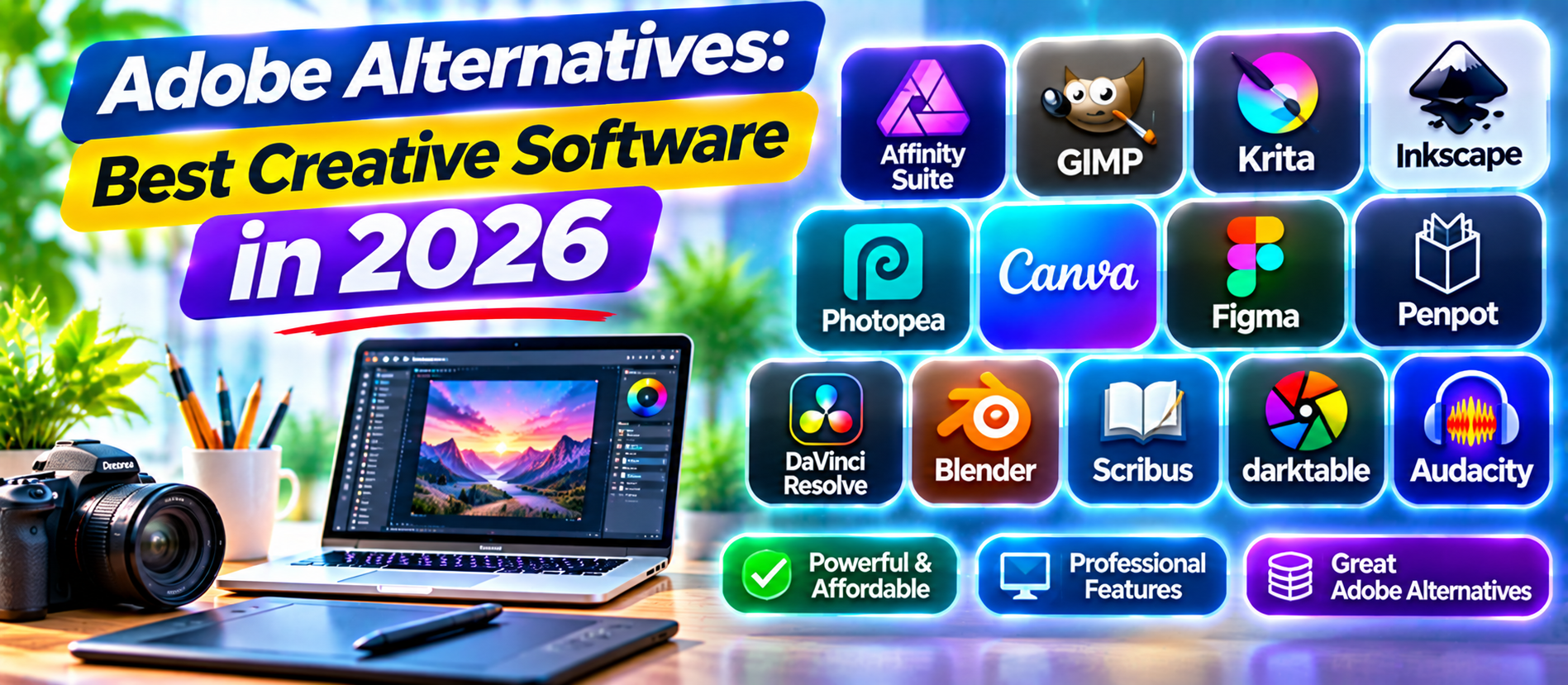
Quick Comparison: Best Adobe Alternatives in 2026
1. Affinity: A Broad Creative Alternative
2. GIMP: A Free Photoshop Alternative
Creative software helps designers, photographers, video editors, illustrators, and content creators turn ideas into finished work. For many years, Adobe Creative Cloud has been a common choice for professional creative projects. Its applications cover photo editing, vector graphics, page layout, video production, motion graphics, audio editing, and PDF work.
However, Adobe is not the only option. Many creative applications now offer powerful features, flexible workflows, and different pricing models. Some are free and open source. Others provide a free plan or a one-time purchase. Several focus on one task and do it very well.
This gives creators more choice. A photographer may need a strong RAW editor. A graphic designer may need vector tools. A video editor may want advanced color correction. A small business may need quick social media designs. Each user has a different reason to look for an Adobe alternative.
This guide explores the best Adobe alternatives in 2026. It covers photo editing, graphic design, illustration, video editing, motion graphics, UI/UX design, page layout, and audio editing. It also explains the strengths and limits of each tool, so you can choose software that fits your actual workflow.
Why Are Creators Looking for Adobe Alternatives?
Adobe offers a large creative ecosystem. It connects applications, cloud services, fonts, libraries, collaboration features, and AI-powered tools. This can be useful for professionals who work across several creative disciplines. At the same time, some users want a simpler or more affordable setup.
1. Subscription costs
Creative Cloud plans can represent a regular expense. This may be reasonable for a studio that uses several applications every day. It may be less attractive for a student, freelancer, hobbyist, or small business that only needs one or two tools.
2. Different creative needs
Not every creator needs a complete software suite. A photographer may only need image processing. A video creator may mainly need editing and color grading. A social media manager may need templates and fast exports. A focused application can be easier to learn and maintain.
3. Free and open-source options
Open-source tools such as GIMP, Inks cape, Krita, Blender, and Audacity offer capable workflows without a traditional subscription. Their communities also create tutorials, extensions, and learning resources.
4. More flexible workflows
Some users prefer browser-based tools. Others want local files, offline access, self-hosting, or Git-based collaboration. Alternative software gives teams more ways to organize creative work.
5. Better fit for a specific task
A specialist application may offer a workflow that is more suitable for a particular job. For example, Da Vinci Resolve is well known for video editing and color work. Krita focuses on digital painting. Figma and Penpot focus on interface design and collaboration.
Quick Comparison: Best Adobe Alternatives in 2026
This table helps you find a starting point. Many products have free and paid editions. Features, platform support, and plan limits can change, so check the official website before making a purchase or moving a production workflow.
| Software Best for Adobe workflow it can replace Pricing model | |||
| Affinity | Photo, vector, and page-layout design | Photoshop, Illustrator, and some InDesign workflows | Free core application; verify current account and AI feature requirements |
| GIMP | Photo editing and raster graphics | Photoshop | Free and open source |
| Photo pea | Browser-based image editing and PSD work | Photoshop for many common tasks | Free with ads and optional paid plan |
| Krita | Digital painting and illustration | Photoshop painting workflows | Free and open source |
| Inks cape | Vector graphics, logos, and SVG | Illustrator | Free and open source |
| Canva | Social media graphics and marketing design | Some Photoshop, Illustrator, and Express workflows | Free and paid plans |
| Fig ma | UI/UX design and prototyping | Adobe XD-style workflows | Free and paid plans |
| Pen pot | Open-source interface design | Adobe XD-style workflows | Free hosted option and self-hosting options |
| Da Vinci Resolve | Video editing, colour, effects, and audio post | Premiere Pro and some After Effects workflows | Free version and paid Studio edition |
| Blender | 3D modelling, animation, and compositing | Some After Effects and 3D workflows | Free and open source |
| Scribus | Desktop publishing and print layout | InDesign | Free and open source |
| dark table | RAW photo processing | Lightroom Classic workflows | Free and open source |
| Audacity | Audio recording and editing | Some Audition workflows | Free and open source |
1. Affinity: A Broad Creative Alternative
Affinity is one of the most important options to consider in 2026. Canva introduced a unified Affinity application in October 2025. It brings photo editing, vector design, and page-layout tools together in one application. Canva announced that the core Affinity app would be free for everyone.
This is a major change for creators who want professional design tools without a recurring software subscription. Instead of switching between separate photo, vector, and layout applications, users can work across these disciplines in one environment.
What can Affinity do?
- Edit photographs and work with layers.
- Create vector illustrations, logos, icons, and graphics.
- Arrange text, images, and page layouts.
- Work with professional design documents.
- Import selected file formats used in common creative workflows.
Advantages
Affinity offers a broad set of creative tools in one application. It is worth testing for designers who use Photoshop, Illustrator, or InDesign for overlapping tasks. The free core application also makes it attractive to freelancers and small studios.
Limitations
Affinity is not a complete replacement for every Adobe service. It does not replace the full Creative Cloud ecosystem, including dedicated video, audio, PDF, asset-management, and cloud-collaboration products. Some AI features may require a paid Canva plan. Teams should test file imports, exports, fonts, color settings, and print requirements before moving client work.
Best for: Designers who want photo, vector, and layout tools in one broad creative application.
2. GIMP: A Free Photoshop Alternative
GIMP is a free and open-source image editor. It is a long-standing option for photographers, designers, artists, and users who need to edit raster images without paying for a commercial subscription.
GIMP supports layers, masks, selections, filters, colour adjustments, retouching, and many common image-editing tasks. It can be used for photo correction, background removal, image composition, web graphics, and digital artwork.
Advantages
- Free to download and use.
- Open-source development and community support.
- Layer-based editing and image manipulation.
- Extensible through plug-ins and scripts.
- Available across major desktop operating systems.
Limitations
GIMP has its own interface and workflow. Users moving from Photoshop may need time to learn its tools and shortcuts. Some advanced Photoshop features and file behaviours may not transfer exactly. Professional print workflows should be tested carefully, especially when color separation and specific prepress requirements are involved.
Best for: Users who want a capable, free, open-source image editor for everyday and advanced raster work.
3. Photo pea: Photoshop-Style Editing in a Browser
Photo pea is a browser-based image editor. It is useful when you need to edit an image quickly without installing desktop software. It supports many common file formats, including PSD, and provides a layer-based editing experience.
Photo pea can help with banners, social media graphics, image resizing, simple retouching, background removal, and edits to layered design files. It can be especially useful when working on a shared or temporary computer.
Advantages
- Runs in a modern web browser.
- Can open and edit PSD files for many common workflows.
- Useful for quick image changes and layered graphics.
- No large desktop installation is required.
Limitations
Complex files may not behave exactly as they do in Photoshop. Performance depends on the browser, device, and document size. Users should also review the current free and paid experience, including advertising and privacy considerations.
Best for: Students, freelancers, and designers who need quick browser-based editing or occasional PSD work.
4. Krita: A Strong Tool for Digital Painting
Krita is a free and open-source painting application. It is designed for illustrators, concept artists, comic creators, and digital painters. Its brush system and drawing tools make it a strong option for artists who focus on creating artwork rather than editing photographs.
Key features
- Customizable brushes and brush engines.
- Layers, masks, and blending modes.
- Drawing assistants and stabilizers.
- Tools for comics, concept art, and illustration.
- Animation features for selected 2D workflows.
Krita can replace some Photoshop painting and illustration workflows. It is not designed to replace every photo-retouching or graphic-production feature in Photoshop. Users should choose it because of its painting strengths.
Best for: Digital artists, illustrators, comic creators, and concept artists.
5. Inks cape: A Free Illustrator Alternative
Inks cape is a free and open-source vector graphics editor. It is widely used for logos, icons, diagrams, illustrations, typography, and scalable graphics. Its primary format is SVG, which is supported by modern browsers and many design applications.
What makes Inks cape useful?
- Draw and edit vector shapes and paths.
- Create logos, icons, and illustrations.
- Work with text and typography.
- Use gradients, patterns, and path operations.
- Export graphics for web and print workflows.
Vector artwork can be resized without losing sharpness. This makes Inks cape useful for logos, signage, diagrams, and illustrations that need several output sizes.
Limitations
Inkscape does not aim to reproduce every Illustrator feature. Teams that exchange complex AI files, use specialist plug-ins, or prepare color-critical print jobs should test their documents before switching.
Best for: Designers who need free vector tools for logos, icons, diagrams, and SVG graphics.
6. Canva: Fast Design for Marketing and Content Teams
Canva is a web-based design platform for creating social media posts, presentations, posters, flyers, documents, videos, and marketing assets. It focuses on templates, simple editing, brand tools, and team collaboration.
Canva is not a direct replacement for every professional Adobe application. It is most useful when speed, consistency, and easy collaboration matter more than detailed pixel-level control.
Advantages
- Large library of templates and design elements.
- Simple drag-and-drop editing.
- Useful tools for social media and marketing content.
- Brand controls and shared team workflows on supported plans.
- Browser and mobile access.
- AI-assisted creative features, subject to plan and usage limits.
Limitations
Template-based design can limit detailed control over complex artwork. Professional designers may still need a dedicated vector, photo, or page-layout application. Check export settings, licensing terms for stock elements, and team permissions before using Canva for commercial work.
Best for: Small businesses, marketing teams, content creators, and users who need attractive designs quickly.
7. Fig ma: A Leading Alternative for UI/UX Design
Fig ma is a collaborative interface design and prototyping platform. It is used by product designers, UX designers, developers, and product teams to create website and app interfaces.
Fig ma is not a general Photoshop or Illustrator replacement. Its strength is digital product design. Teams can create wireframes, reusable components, interactive prototypes, and design systems. Multiple people can work in the same file and share feedback.
Key features
- Interface design for websites and applications.
- Reusable components and design systems.
- Interactive prototyping.
- Comments and team collaboration.
- Developer handoff and inspection tools.
- Plugins and integrations for extended workflows.
Fig ma is a strong option for teams that previously used Adobe XD or need a shared environment for interface design. It is less suitable for detailed photo retouching or print-focused vector production.
Best for: UI/UX designers, product teams, web designers, and developers who collaborate on digital interfaces.
8. Pen pot: Open-Source UI Design and Prototyping
Pen pot is an open-source design and prototyping platform. It focuses on interface design and collaboration. It is worth considering for teams that want an open-source option or need more control over where their design platform is hosted.
Advantages
- Open-source platform.
- Tools for interface design and prototyping.
- Design workflows based on web technologies.
- Options for hosted use and self-hosting.
- Collaboration between designers and developers.
Pen pot can be useful for organizations that value open standards and infrastructure control. Before choosing it, test how its component system, prototyping, file exchange, and team features fit your process.
Best for: Product teams and organizations looking for an open-source UI/UX design platform.
9. Da Vinci Resolve: A Powerful Premiere Pro Alternative
Da Vinci Resolve is a professional video post-production application. It combines editing, color correction, visual effects, motion graphics, and audio post-production in one environment.
Its different workspaces support several stages of video production. Editors can arrange clips on a timeline. Colorists can adjust shots and manage color. Fusion provides node-based visual effects and compositing tools. Fairlight supports audio post-production.
Advantages
- Video editing and timeline tools.
- Advanced color correction and grading.
- Visual effects and compositing features.
- Audio post-production tools.
- A free version for many editing workflows.
- A paid Studio edition for additional capabilities.
Limitations
Resolve has a learning curve, especially for users who are new to professional editing and color workflows. Performance depends on hardware, codecs, media size, and project complexity. Some Premiere Pro projects, plug-ins, and effects may need to be rebuilt rather than transferred directly.
Best for: Video editors, filmmakers, content studios, and creators who need editing and color tools in one application.
10. Blender: Free 3D, Animation, and Visual Effects
Blender is a free and open-source 3D creation suite. It supports modelling, sculpting, materials, lighting, animation, rendering, compositing, and video editing features.
Blender is not a one-to-one replacement for After Effects. It is a broader 3D creation tool that can handle motion graphics, product visualization, animated scenes, and visual effects. It is especially useful when a project needs 3D assets or rendered animation.
Key features
- 3D modelling and sculpting.
- Materials, lighting, and rendering.
- Character rigging and animation.
- Compositing and visual effects.
- Motion graphics and procedural workflows.
- Python scripting and community extensions.
Blender is powerful, but beginners should expect a learning period. It is best approached through small projects, such as modelling a product, creating a short animation, or building a simple scene.
Best for: 3D artists, animators, motion designers, product visualizers, and VFX learners.
11. Scribus: An Open-Source InDesign Alternative
Scribus is a desktop publishing application. It is designed for page layout and print-oriented documents such as brochures, newsletters, magazines, posters, and books.
Scribus supports text frames, image frames, page layouts, color management features, and PDF output. It can be useful for users who need to prepare publications without a commercial desktop publishing subscription.
Advantages
- Free and open-source desktop publishing.
- Tools for multi-page documents.
- Text and image frame layout.
- PDF export for print and digital sharing.
- Useful for newsletters, brochures, and book layouts.
Limitations
Its workflow differs from InDesign. Complex documents may need layout adjustments when imported or recreated. Professional print teams should test fonts, bleed, color settings, image links, and PDF output with their printer before committing to a production process.
Best for: Publishers, educators, community groups, and designers who create print-focused documents.
12. dark table: A Free Lightroom Alternative
dark table is an open-source photography workflow application. It is designed for RAW image processing and non-destructive editing. Photographers can use it to manage images and adjust exposure, color, detail, and other aspects of a photograph.
dark table is especially relevant to photographers who want a desktop RAW workflow without a subscription. It is not identical to Lightroom. Users should compare its cataloguing, tethering, cloud synchronization, and camera support with their needs.
Advantages
- Free and open-source software.
- Non-destructive RAW processing.
- Colour and exposure adjustments.
- Image organization and workflow tools.
- Local desktop workflow.
Best for: Photographers who want a free RAW processing and image workflow application.
13. Audacity: A Free Audio Editing Alternative
Audacity is a free and open-source audio editor and recorder. It is useful for podcasts, voice recordings, interviews, sound cleanup, and basic audio production.
Audacity supports recording, editing, trimming, noise reduction, effects, and multi-track work. It can replace some everyday Audition tasks, but it is not a complete substitute for every advanced professional audio post-production workflow.
Advantages
- Free and open source.
- Record and edit audio tracks.
- Trim, split, and combine recordings.
- Apply effects and reduce unwanted noise.
- Useful for podcasts and spoken-word content.
Best for: Podcasters, educators, students, and creators who need straightforward audio recording and editing.
Best Adobe Alternatives by Application
| Adobe application Alternative to try Other options Main use | |||
| Photoshop | Affinity or GIMP | Photo pea, Krita | Photo editing, retouching, compositing, painting |
| Illustrator | Affinity or Inks cape | Linearity Curve, Corel DRAW | Vector illustration, logos, icons |
| InDesign | Affinity or Scribus | Canva for simpler layouts | Books, brochures, magazines, page layout |
| Premiere Pro | Da Vinci Resolve | Kdenlive, Shot cut | Video editing and post-production |
| After Effects | Blender or Da Vinci Resolve Fusion | Natron | Motion graphics, compositing, visual effects |
| Lightroom | dark table | Raw Therapee, Capture One | RAW processing and photo workflow |
| Adobe XD | Fig ma or Pen pot | Other prototyping tools | UI/UX design and prototypes |
| Audition | Audacity | REAPER | Audio recording and editing |
These are workflow matches, not guarantees of full feature parity. Some Adobe applications have specialized tools, plug-ins, and file formats that are difficult to reproduce in another product.
How to Choose the Right Creative Software
The best creative application is the one that supports your work without adding unnecessary cost or complexity. Use these questions to narrow your options.
1. Identify your main creative task
Start with the work you do most often. Do you edit photos, create logos, design websites, produce videos, draw illustrations, or prepare publications? Choose a tool designed for that task. A general design platform may not be suitable for advanced photography or video finishing.
2. Check your operating system
Some tools run in a browser. Others need Windows, macOS, or Linux. Some have mobile versions. Check supported devices and hardware before you plan a migration. Large video and photo projects may need substantial memory, storage, and graphics performance.
3. Test file compatibility
File compatibility is one of the most important factors. Test PSD, AI, INDD, PDF, SVG, RAW, video timelines, fonts, color profiles, and linked assets as needed. A file may open but lose editable layers, effects, fonts, or layout details.
4. Compare the total cost
Look beyond the advertised price. Consider subscriptions, upgrades, cloud storage, plug-ins, training, hardware, and support. A free application may be enough for a simple workflow. A professional studio may need paid services or additional specialist software.
5. Consider collaboration
If several people work on the same project, check sharing, comments, permissions, version history, and simultaneous editing. A desktop application may be excellent for one designer but less suitable for a distributed team.
6. Review learning resources
A tool is easier to adopt when it has clear documentation, tutorials, and an active community. Try a small project before moving all your work. This helps you understand the learning curve and discover missing features early.
How to Move from Adobe to Alternative Software
Changing creative software can affect client files, team handoffs, and production deadlines. A gradual migration is safer than cancelling a subscription and moving every project at once.
- List the applications you use. Record the tasks each application performs and how often you use it.
- Choose one workflow to test. Start with a small project that represents your normal work.
- Keep original files. Make backups of native Adobe files, linked assets, fonts, presets, and project folders.
- Test import and export. Check layers, text, effects, color, resolution, timing, and output quality.
- Rebuild templates if needed. Some templates, plug-ins, and automation scripts may not transfer.
- Ask collaborators to review files. Confirm that clients, printers, editors, or developers can use the exported files.
- Train the team. Share shortcuts, file rules, and new review procedures.
- Move one project type at a time. Keep the old workflow available until the new one is reliable.
Do not delete or overwrite original project files during migration. Keep an archive that allows you to return to the source project if a client requests a revision later.
Are Free Adobe Alternatives Good Enough for Professional Work?
Yes, many free creative applications can support professional projects. The important question is whether the tool meets the technical and delivery requirements of the job.
GIMP can handle many image-editing tasks. Inks cape can create professional vector artwork. Krita is suitable for illustration. Blender is used for complex 3D work. Da Vinci Resolve supports serious video post-production. Affinity brings several professional design disciplines into a free application.
However, professional work also depends on collaboration, file exchange, color management, print standards, support, and deadlines. A tool may be powerful but still not fit a client's production pipeline. Always test the exact deliverables you need to produce.
Common Mistakes When Choosing Adobe Alternatives
- Expecting one tool to replace everything: Creative Cloud contains many specialist applications. A small set of focused tools may be more practical.
- Choosing only by price: Consider time, learning, support, collaboration, and file compatibility.
- Ignoring native project files: Keep originals and test exports before changing your workflow.
- Skipping a trial project: Use real files to check whether the alternative meets your needs.
- Overlooking team requirements: Confirm that clients and colleagues can open and edit the files you deliver.
- Assuming free means unlimited: Hosted services may have storage, feature, or usage limits. Read the current terms.
- Forgetting updates and backups: Keep software current and protect important creative assets.
Frequently Asked Questions (FAQs)
1. What is the best Adobe alternative in 2026?
There is no single best alternative for every Adobe application. Affinity is a broad option for photo, vector, and page-layout work. Da Vinci Resolve is a strong choice for video. Fig ma is useful for UI/UX. GIMP, Inks cape, Krita, and Blender are strong free and open-source tools in their respective areas.
2. Is there a free alternative to Adobe Photoshop?
Yes. Affinity, GIMP, and Photo pea are options to consider. Affinity combines photo, vector, and layout tools. GIMP is a free and open-source desktop editor. Photo pea works in a browser and supports many common image formats, including PSD.
3. What is the best free alternative to Adobe Illustrator?
Inks cape is a strong free and open-source vector editor. Affinity is another option for professional vector work. The best choice depends on file compatibility, print requirements, and the design features you use.
4. Which software can replace Adobe Premiere Pro?
Da Vinci Resolve is a leading alternative for video editing and post-production. Kdenlive and Shot cut are other options for users who prefer open-source editing tools.
5. Is Canva a replacement for Adobe Creative Cloud?
Canva can replace some everyday marketing and design tasks, such as social media graphics, presentations, posters, and simple videos. It does not replace every specialist Adobe application or advanced production workflow.
6. What is the best free alternative to Adobe InDesign?
Scribus is a free and open-source desktop publishing tool. Affinity is another option for page layout. Test fonts, page styles, print settings, and PDF output before using either for a complex publication.
7. Can I open Adobe PSD or AI files in alternative software?
Some alternatives can import or edit PSD and selected AI files. Compatibility is not always complete. Effects, layers, fonts, masks, and other features may change. Test your own files before moving a project.
8. Is open-source creative software suitable for businesses?
It can be. Businesses should review licensing, support, security, update practices, file compatibility, and staff training. Open-source software can be a practical choice when it meets the company's workflow and delivery needs.
9. Which Adobe alternative is best for digital painting?
Krita is a strong option for digital painting, illustration, comics, and concept art. It offers a broad brush system and tools designed for artists.
10. Which creative software is best for beginners?
Canva is approachable for template-based graphics. Photo pea is useful for browser-based image editing. Krita and Inks cape are good free tools for people who want to learn illustration and vector design. Beginners should choose based on the type of work they want to create.
11. Can I use more than one Adobe alternative?
Yes. Many creators use a combination of tools. For example, they may use dark table for RAW processing, Affinity for design, Da Vinci Resolve for video, and Canva for quick social media graphics.
12. Should I cancel Adobe immediately after finding an alternative?
No. First test the replacement with real projects. Check file compatibility, client handoffs, fonts, plug-ins, export quality, and team workflows. Keep your original files and move one type of work at a time.
Conclusion
Adobe Creative Cloud remains a powerful creative ecosystem, but it is no longer the only route to professional design and content production. In 2026, creators can choose from a wide range of alternatives for photo editing, vector graphics, illustration, video, 3D, audio, and interface design.
💡 Key Insight
Affinity is an important broad option for photo, vector, and layout work. GIMP and Photo pea support image editing. Krita is built for digital painting. Inks cape handles vector graphics. Canva makes marketing design faster. Figma and Pen pot support interface design. DaVinci Resolve is a strong video production choice. Blender, Scribus, dark table, and Audacity cover other specialist needs.
The best decision depends on your work, budget, operating system, team, and file requirements. Do not choose software only because it is free or popular. Test it with real projects, protect your original files, and confirm that collaborators can use the final output. A thoughtful combination of creative tools can be more effective than relying on one large software suite.
About Digiifrog
Digiifrog shares practical insights on technology, digital tools, creative software, business, and digital transformation. Our aim is to make useful information clear and accessible for professionals, students, entrepreneurs, and creators. Explore more articles and resources at www.digiifrog.com.
References and Official Resources
- Canva: Introducing the all-new Affinity.
- GIMP – Official website.
- Photo pea – Online image editor.
- Krita – Digital painting software.
- Inks cape – Vector graphics editor.
- Canva – Visual communication platform.
- Fig ma – Interface design and collaboration.
- Pen pot – Open-source design platform.
- Blackmagic Design: Da Vinci Resolve.
- Blender – 3D creation suite.
- Scribus – Desktop publishing.
- dark table – Photography workflow software.
- Audacity – Audio editor.
- Adobe Creative Cloud plans and pricing.
Ready to Grow?
Talk to us about a strategy tailored to your brand — we will help you stand out in search, AI discovery and social.

Comments (0)
Log in to leave a comment.