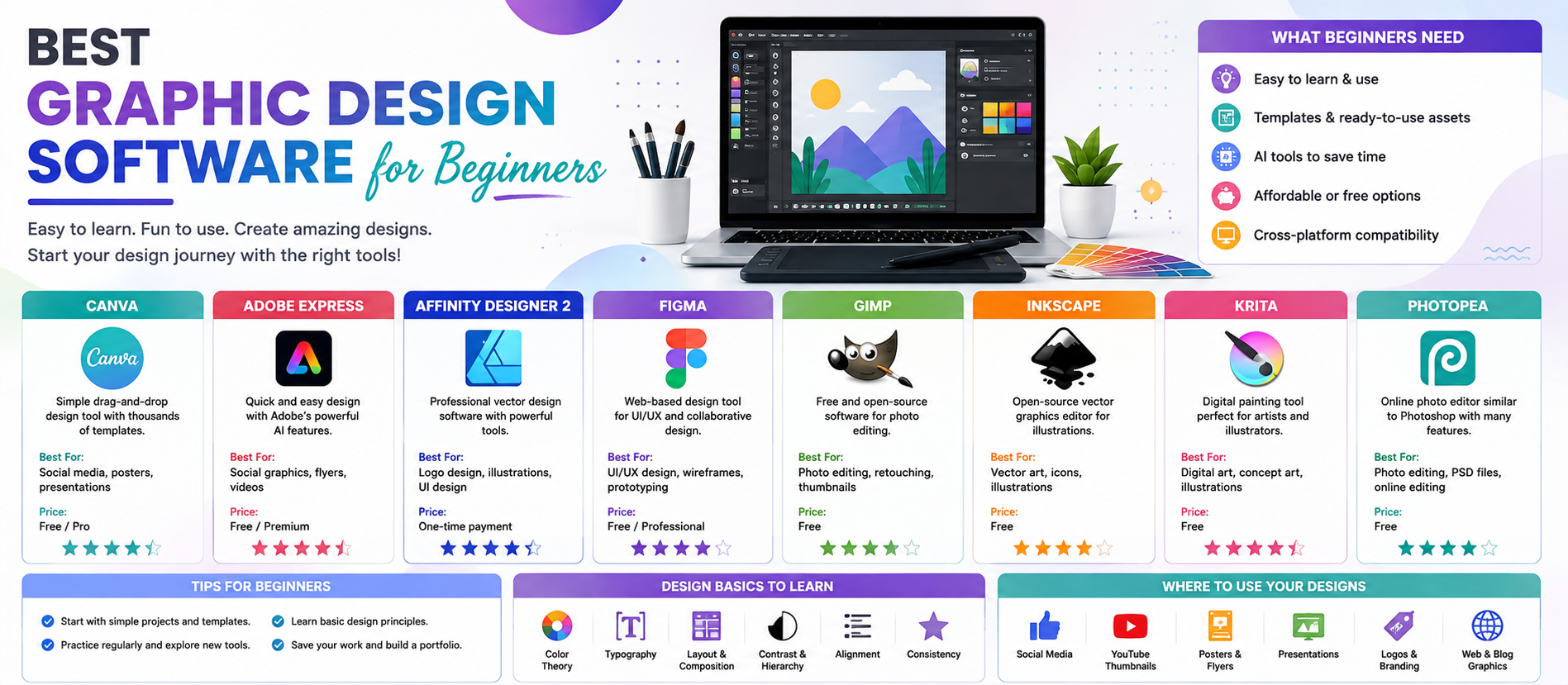
📋 Quick Summary
In this article:
Quick Answer: What Is the Best Graphic Design Software for Beginners?
What Makes Design Software Beginner-Friendly?
Best Graphic Design Software at a Glance
1. Canva: Best for Complete Beginners and Everyday Marketing Design
2. Adobe Express: Best for Quick, Beginner-Friendly Content Creation
3. Affinity: Best for Beginners Who Want to Grow into Professional Design
4. Figma: Best for UI/UX and Collaborative Design
5. Inkscape: Best Free Software for Learning Vector Graphics
6. Krita: Best for Digital Illustration and Painting
7. GIMP: Best for Learning Image Editing
Free vs Paid Graphic Design Software
How AI Is Changing Graphic Design for Beginners
Focus Keyword: Best Graphic Design Software for Beginners
Starting graphic design can feel difficult. New designers often see professional tools with hundreds of panels, settings, shortcuts, file formats, and advanced features. The good news is that beginners do not need to master everything at once.
Modern graphic design software is available for many different skill levels. Some tools focus on simple drag-and-drop design. Others provide professional vector illustration, photo editing, interface design, or digital painting. AI-powered features are also making many creative tasks faster by helping users generate ideas, remove backgrounds, create images, resize designs, edit objects, and experiment with different visual directions.
This guide explains the best graphic design software for beginners. It compares popular tools, explains what each one is best for, and provides a simple method for choosing the right software.
Digiifrog creates clear, structured, and search-friendly content about technology, software, business, education, and digital growth. Our content strategy considers SEO, AEO, GEO, and AI Search Optimization.
Quick Answer: What Is the Best Graphic Design Software for Beginners?
The best software depends on what you want to create. Canva is a practical starting point for social media graphics, presentations, posters, simple marketing materials, and template-based design. Adobe Express is another beginner-friendly option for fast content creation, templates, image editing, video, and AI-assisted design. Fig ma is a strong choice for interface and collaborative design. Inkscape is useful for learning vector graphics without paying for proprietary software, while Krita is a popular option for digital illustration and painting. GIMP is useful for learning image editing. The current all-new Affinity combines photo editing, vector design, and layout tools and is positioned as a professional-grade creative application available free to users.
If you are completely new to design, start with the type of project you want to make rather than searching for the most advanced application.
What Makes Design Software Beginner-Friendly?
Good beginner software does not need to be simple in every way. It should help a new user complete useful work without requiring months of training.
Beginner-friendly design software usually offers:
- A clear and understandable interface.
- Templates or examples.
- Drag-and-drop editing.
- Easy access to fonts, colors, and visual elements.
- Undo and version history.
- Export options for common formats.
- Helpful tutorials or learning resources.
- Reasonable system requirements.
- Free access or an affordable way to learn.
- Optional AI tools that simplify repetitive tasks.
The best beginner software should allow you to learn design principles while still producing useful results.
Best Graphic Design Software at a Glance
| Software Best For Learning Level Key Strength | |||
| Canva | Social media and marketing graphics | Very easy | Templates and drag-and-drop design |
| Adobe Express | Fast content creation | Very easy | Templates, quick actions, AI, photo and video tools |
| Affinity | Professional design growth | Moderate | Photo, vector, and layout tools in one application |
| Fig ma | UI/UX and collaborative design | Easy to moderate | Interface design and real-time collaboration |
| Inks cape | Vector graphics | Moderate | Free vector illustration tools |
| Krita | Digital painting and illustration | Moderate | Brushes and creative drawing tools |
| GIMP | Photo editing | Moderate | Powerful image editing without a paid subscription |
1. Canva: Best for Complete Beginners and Everyday Marketing Design
Canva is one of the easiest ways for a beginner to start creating visual content. Its template-based approach allows users to begin with a design for a social media post, presentation, flyer, poster, business card, document, or other format and then customize the text, images, colors, and layout.
This approach can reduce the fear of starting with a blank canvas. A beginner can study how an existing layout uses hierarchy, spacing, color, and typography while creating something useful at the same time.
Best for: Social media posts, presentations, posters, flyers, simple logos, marketing graphics, thumbnails, and business content.
Main advantages:
- Easy drag-and-drop workflow.
- Large template library.
- Simple text and image editing.
- Branding and reusable design features.
- Collaboration tools.
- Fast resizing and content adaptation options.
- Useful for individuals, businesses, educators, and marketing teams.
What beginners should learn with Canva: Visual hierarchy, spacing, font pairing, contrast, alignment, consistent color use, and audience-focused design.
Potential limitation: Templates can make it easy to create generic-looking work if users change only the text. Beginners should learn to customize layouts rather than relying completely on the original template.
2. Adobe Express: Best for Quick, Beginner-Friendly Content Creation
Adobe Express is designed to make graphic, image, video, and marketing content easier to create. Adobe presents it as a quick, easy, all-in-one application for social posts, images, videos, flyers, and other content. It includes templates, quick editing actions, generative AI features, collaboration, resizing, and brand-related tools.
For beginners, the main benefit is speed. Instead of opening several separate applications, a user can create graphics, edit images, remove backgrounds, work with text, resize content, and create simple videos in one environment.
Best for: Social content, flyers, posters, resumes, banners, simple logos, thumbnails, marketing graphics, and fast visual communication.
Main advantages:
- Beginner-friendly templates.
- Drag-and-drop editing.
- Quick Actions for common tasks.
- Photo, video, and PDF workflows.
- Generative AI features powered by Adobe Firefly.
- Brand-related design tools.
- Content resizing and scheduling features.
- Works across browser and mobile workflows.
Adobe also provides beginner-focused learning material and describes Adobe Express as a suitable starting point for users learning graphic design principles and basic visual communication.
Potential limitation: It is excellent for quick creation, but users who want deep professional workflows for advanced photo compositing, complex vector illustration, or long-form publication design may eventually need more specialized software.
3. Affinity: Best for Beginners Who Want to Grow into Professional Design
Affinity is now presented as a unified creative application that combines photo editing, vector design, and page layout tools. This makes it particularly interesting for beginners who want one environment that can support several areas of visual design.
Canva announced the all-new Affinity as a reimagined professional design application and stated that it combines photo editing, vector design, and layout tools in one platform available free to everyone.
Best for: Users who want to move beyond templates and learn professional-style photo, illustration, and layout workflows.
Main advantages:
- Photo editing tools.
- Vector design capabilities.
- Page layout features.
- Customizable workspace.
- One environment for several design disciplines.
- Professional-oriented creative workflow.
What beginners should learn: Layers, masks, vector shapes, typography, image adjustment, export settings, and layout composition.
Potential limitation: The learning curve is higher than a simple template editor. Beginners should learn one feature group at a time instead of trying to master the complete application immediately.
4. Figma: Best for UI/UX and Collaborative Design
Figma is widely used for designing digital interfaces and working collaboratively on design projects. It is particularly useful for beginners interested in website layouts, mobile applications, dashboards, design systems, and product interfaces.
Unlike software focused mainly on posters or social media, interface design requires users to think about user flows, components, responsiveness, accessibility, consistency, and collaboration.
Best for: UI design, UX workflows, web interfaces, mobile app design, wireframes, prototypes, and collaborative design.
Main advantages:
- Browser-based workflow.
- Real-time collaboration.
- Reusable components.
- Interface and prototype design.
- Design system support.
- Useful for team feedback.
What beginners should learn: Frames, components, auto layout, spacing systems, typography, color systems, prototypes, and accessibility basics.
Potential limitation: Figma is specialized for digital product and interface design. It is not the first choice for every type of photo editing or illustration.
5. Inkscape: Best Free Software for Learning Vector Graphics
Vector graphics are built differently from ordinary pixel-based images. They are useful for logos, icons, diagrams, illustrations, and artwork that may need to scale to different sizes.
Inkscape is a strong option for beginners who want to learn vector design without starting with expensive software.
Best for: Logos, icons, vector illustrations, diagrams, and learning scalable graphic design.
Main advantages:
- Vector-based design.
- Suitable for scalable artwork.
- Useful shape and path tools.
- Text and typography support.
- Good learning environment for core vector concepts.
What beginners should learn: Paths, nodes, fills, strokes, Boolean operations, layers, and SVG export.
Potential limitation: The interface and workflow may feel less immediately simple than template-based software.
6. Krita: Best for Digital Illustration and Painting
Krita is designed around digital art and painting. It is a good choice for beginners who are more interested in drawing than in social media templates or marketing layouts.
Digital painting requires different skills from traditional graphic design. Beginners need to learn brushes, layers, color, lighting, texture, composition, and drawing fundamentals.
Best for: Digital painting, character art, concept art, comics, and creative illustration.
Main advantages:
- Strong digital brush workflow.
- Layer-based editing.
- Useful illustration tools.
- Suitable for creative drawing practice.
- Supports a dedicated art workflow.
Potential limitation: It is not designed primarily as a simple marketing design platform.
7. GIMP: Best for Learning Image Editing
GIMP is a long-established image editing application. It can help beginners learn many concepts that also appear in professional photo editing workflows, including layers, selections, masks, color adjustments, retouching, and image composition.
Best for: Photo editing, image manipulation, retouching, and learning layer-based image workflows.
Main advantages:
- Powerful image editing tools.
- Layer-based workflow.
- Selection and masking tools.
- Color and image adjustments.
- Useful for learning photo editing concepts.
Potential limitation: The interface can feel more technical than beginner-first template applications.
Free vs Paid Graphic Design Software
Beginners do not always need to pay for software immediately. Free tools can be enough to learn design principles and build a portfolio.
However, paid plans may provide additional assets, AI credits, advanced editing, storage, collaboration, export options, or professional workflow features.
For example, Adobe Express offers a free plan with core editing tools and limited assets, while its premium plans add more assets, generative AI capacity, advanced tools, resizing, and other features. Available plans and pricing can change by region and over time, so users should check Adobe's current pricing page before purchasing.
The best approach is often:
- Start with a free plan or free tool.
- Create several real projects.
- Identify the feature limitations that actually affect your work.
- Pay only when a premium feature saves meaningful time or improves professional output.
How AI Is Changing Graphic Design for Beginners
AI is changing creative software, but it does not replace the need for design judgment.
Modern AI-assisted design features can help users:
- Generate visual ideas.
- Create images from text prompts.
- Remove or replace backgrounds.
- Generate text effects.
- Resize content for different platforms.
- Suggest layouts and design directions.
- Edit selected parts of an image.
- Create first drafts more quickly.
Adobe Express, for example, includes generative AI features powered by Adobe Firefly and an AI Assistant workflow for creating and editing content.
The important lesson for beginners is this: AI can help create options, but you still need to choose the best option. Good design depends on audience, message, hierarchy, readability, contrast, spacing, brand consistency, and context.
How to Choose the Right Graphic Design Software
1. Define What You Want to Create
Your first question should be simple: what do you want to design?
- Social media graphics: Canva or Adobe Express.
- Marketing content: Canva or Adobe Express.
- Professional photo, vector, and layout work: Affinity.
- Web and app interfaces: Figma.
- Vector illustrations and SVG artwork: Inkscape.
- Digital painting: Krita.
- Photo editing: GIMP or a dedicated photo editor.
2. Consider Your Learning Goal
If you need fast results, use templates and beginner-friendly tools. If you want a professional design career, gradually learn deeper skills such as vector paths, layers, masks, typography, grids, and color systems.
3. Check Your Budget
Do not assume expensive software automatically makes someone a better designer. Start with the tools you can use consistently.
4. Check Your Computer and Device
Some professional applications require more powerful hardware. Browser-based tools can be easier to access on different devices, while advanced desktop software may provide deeper control.
5. Consider Collaboration
If you work with clients or a team, sharing, comments, version history, reusable assets, and brand consistency may matter as much as individual editing features.
Design Principles Every Beginner Should Learn
Software is only one part of graphic design. A simple tool can produce excellent work when the underlying design principles are strong.
Visual Hierarchy
Show the viewer what to notice first. Use size, weight, contrast, position, and spacing to guide attention.
Typography
Choose readable fonts and avoid using too many typefaces in one design. Create a clear relationship between headings, subheadings, and body text.
Contrast
Contrast helps important information stand out. It can come from size, color, weight, shape, or spacing.
Alignment
Elements should appear intentionally placed. Strong alignment makes a design feel organized.
White Space
Empty space is not wasted space. It improves readability and helps important elements breathe.
Color
Use a limited and purposeful color palette. Check that text remains readable against its background.
Adobe's beginner design resources also emphasize concepts such as hierarchy, typography, layout, color, and effective visual communication.
A Simple Learning Roadmap for Beginners
Week 1: Learn the Interface
Choose one tool and learn where the main controls are. Practice creating simple designs without worrying about perfection.
Week 2: Learn Typography and Color
Create several posters or social graphics using only two fonts and a limited color palette.
Week 3: Learn Layout and Hierarchy
Take one message and create three different layouts. Compare which version is easiest to understand.
Week 4: Recreate Existing Designs for Practice
Choose a simple public design for learning purposes and try to recreate its structure. Do not present the copied result as original work.
Week 5 and Beyond: Build Original Projects
Create posters, social campaigns, logos, landing page concepts, or illustrations based on fictional or real project briefs.
Common Mistakes Beginners Make
Using Too Many Fonts
Too many fonts make a design look unorganized. Start with one or two type families.
Using Too Many Colors
A large collection of unrelated colors can reduce visual consistency.
Ignoring Spacing
When every element is close together, the design becomes difficult to read. Add deliberate space.
Copying Templates Without Customization
Templates are starting points. Change the layout, visual choices, images, and typography to fit the actual message.
Making Everything Important
If every element is large, bold, and colorful, nothing stands out. Create a clear visual priority.
Using AI Output Without Editing
AI-generated graphics may contain awkward details, incorrect text, inconsistent visual elements, or poor composition. Always review the final output.
Graphic Design Software and SEO, AEO, GEO, and AI Search
People researching design tools often ask direct questions:
- What is the easiest graphic design software for beginners?
- Is Canva good for beginners?
- What is the best free graphic design software?
- Which software is best for logo design?
- Can beginners use AI for graphic design?
- What should I learn after Canva?
SEO helps useful design content become discoverable through search engines.
AEO focuses on giving direct, useful answers to common questions.
GEO helps organize information for generative search experiences.
AI Search Optimization emphasizes clear headings, direct language, structured comparisons, useful context, and information that both people and AI systems can understand.
How Digiifrog Supports Design and Technology Content
Digiifrog creates structured, readable content for technology companies, software businesses, creative professionals, educational organizations, and digital audiences.
- SEO Content Strategy
- AEO and Answer-Focused Content
- GEO and Generative Search Optimization
- AI Search Optimization
- Software and Technology Content
- Creative and Digital Business Content
Frequently Asked Questions
What is the easiest graphic design software for beginners?
Canva and Adobe Express are practical starting points for complete beginners because they provide templates, simple editing, and fast workflows. Adobe specifically describes Adobe Express as a beginner-friendly design tool with drag-and-drop functionality and customizable themes.
What is the best free graphic design software?
The answer depends on the task. Inkscape is useful for vector graphics, Krita for digital art, and GIMP for image editing. The current Affinity application is also presented by Canva as free professional-grade design software combining photo, vector, and layout workflows.
Is Canva good for learning graphic design?
Yes. Canva can help beginners learn hierarchy, typography, color, spacing, and layout. However, users should also study design principles instead of relying only on templates.
Should I learn Photoshop first?
Not necessarily. Start with the type of work you want to create. If you mainly design social content, a simpler tool may be more useful at first. Learn advanced photo editing software when your projects require deeper image manipulation.
Can AI replace a beginner graphic designer?
AI can speed up ideation and repetitive tasks, but it does not automatically understand the full audience, brand, message, business objective, or design context. Design judgment and communication skills remain important.
What should I learn after beginner design software?
Learn typography, color theory, composition, grids, vector design, image editing, accessibility, branding, and portfolio presentation. Then move into more specialized software based on your preferred career path.
Conclusion
The best graphic design software for beginners depends on the kind of work you want to create.
Canva is a simple starting point for everyday marketing and social content. Adobe Express is useful for quick graphics, templates, image and video editing, and AI-assisted creation. Affinity is a strong option for users who want to explore more professional photo, vector, and layout workflows. Figma is ideal for beginners interested in UI and UX design. Inkscape, Krita, and GIMP provide useful paths for learning vector graphics, digital painting, and image editing.
💡 Key Insight
The most important decision is not choosing the software with the most buttons. Choose a tool that matches your current project and gives you enough room to improve.
Start simple, practice regularly, learn design principles, ask for feedback, and gradually move toward more advanced tools when your creative needs grow.
Disclaimer: This article is for general educational and informational purposes. Software features, AI capabilities, pricing, free plans, licensing, operating system support, and product availability can change. Review current official documentation and pricing before making a purchasing or business decision.
Digiifrog
Website: www.digiifrog.com
Ready to Grow?
Talk to us about a strategy tailored to your brand — we will help you stand out in search, AI discovery and social.

Comments (0)
Log in to leave a comment.