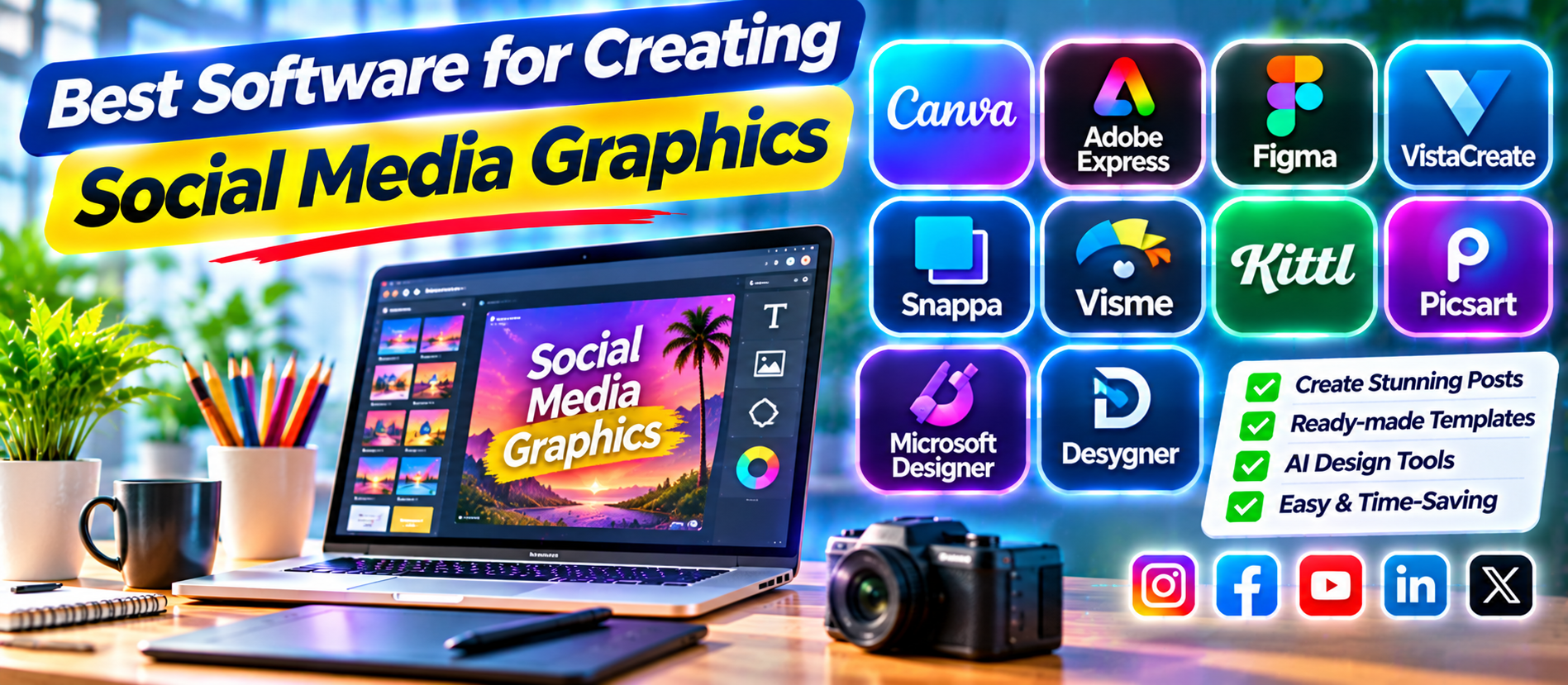
📋 Quick Summary
In this article:
What Is Social Media Graphic Design Software?
Quick Comparison: Best Social Media Graphic Design Software in 2026
1. Canva: Best All-Round Software for Social Media Graphics
2. Adobe Express: Best for Quick Branded Marketing Content
3. VistaCreate: A Useful Tool for Small Businesses
Visual content is a major part of social media marketing. A clear image can help a brand attract attention, explain an offer, promote a product, or share useful information. Businesses use graphics for Instagram posts, Facebook promotions, LinkedIn updates, YouTube thumbnails, Pinterest pins, stories, and advertisements.
You do not always need advanced graphic design skills to create good social media visuals. Modern design software offers templates, ready-made layouts, stock images, fonts, brand controls, and simple editing tools. Some platforms also provide AI features that can help users generate ideas, remove backgrounds, resize designs, or create variations.
However, choosing the right software can be difficult. Some tools are best for beginners. Others are designed for professional designers, marketing teams, or data-rich presentations. A few focus on typography, photo editing, or team collaboration.
This guide reviews the best software for creating social media graphics in 2026. It explains what each tool does well, where it may fall short, and how to select the right option for your workflow. The goal is to help creators and businesses produce attractive, consistent, and useful graphics without wasting time or money.
What Is Social Media Graphic Design Software?
Social media graphic design software helps users create visual content for social platforms. It can be used to make posts, stories, covers, banners, carousels, advertisements, infographics, thumbnails, and promotional images.
Most tools provide a design canvas and a collection of editing features. Users can add text, photos, shapes, icons, backgrounds, and other visual elements. Many tools also include templates with layouts already sized for common social media formats.
Common features
- Ready-made templates: Start with a layout and replace the text, images, and colors.
- Image editing: Crop, resize, adjust, remove backgrounds, and improve photos.
- Typography tools: Add headings, captions, labels, and readable text styles.
- Brand controls: Save logos, colors, fonts, and reusable brand elements.
- Platform sizes: Create graphics for feed posts, stories, reels covers, banners, and thumbnails.
- Team collaboration: Share designs, collect comments, and manage approval.
- AI assistance: Generate design ideas, images, text, or layout variations where supported.
- Export options: Download designs in formats such as PNG, JPG, PDF, or GIF, depending on the tool.
- Content scheduling: Plan and publish posts from supported platforms and plans.
Quick Comparison: Best Social Media Graphic Design Software in 2026
The table below summarizes the main use of each tool. Product features, free-plan limits, and prices can change. Check the official website for current plan details before subscribing.
| Software Best for Main strengths Learning curve | |||
| Canva | All-round social media graphics | Templates, brand tools, resizing, collaboration, content planning | Easy |
| Adobe Express | Branded marketing graphics | Quick edits, templates, Adobe assets, AI tools, scheduling | Easy |
| Vista Create | Small businesses and regular social posts | Templates, animations, stock assets, simple editing | Easy |
| Figma | Design systems and team workflows | Components, precise layouts, shared libraries, collaboration | Moderate |
| Snappa | Quick graphics for blogs and social media | Simple editor, preset sizes, templates, stock assets | Easy |
| Visme | Infographics and data-led content | Charts, diagrams, presentations, branded visuals | Easy to moderate |
| Kittl | Typography-led and illustrated graphics | Text effects, lettering, illustration, templates | Easy to moderate |
| Picsart | Mobile-first image editing | Photo effects, cut-outs, collage, AI-assisted editing | Easy |
| Microsoft Designer | AI-assisted personal and marketing visuals | Prompt-based design ideas and quick image creation | Easy |
| Desygner | Brand assets and business content | Templates, brand controls, team and document workflows | Easy |
1. Canva: Best All-Round Software for Social Media Graphics
Canva is one of the most popular tools for creating social media graphics. It is designed for users who want to make attractive visuals without learning a complex design application. The editor uses a simple drag-and-drop workflow. Users can start with a template, add their own images, change the text, and export the design.
Key features
- Templates for Instagram, Facebook, LinkedIn, Pinterest, YouTube, and other formats.
- Photo editing, cropping, background removal, and visual effects on supported plans.
- Brand tools for storing logos, colors, and fonts.
- Tools for creating presentations, posters, flyers, documents, and short videos.
- Collaboration features for teams.
- Resizing and content planning features on eligible plans.
- AI-assisted design and content tools, subject to plan and usage limits.
Canva is useful for businesses that publish content regularly. A team can create a master design for a product promotion, duplicate it, and update the image, offer, and date for future campaigns. This helps maintain a consistent visual identity.
Advantages
The main advantage is speed. Beginners can create a design quickly. The template library gives users a starting point for many content types. Teams can also share designs and reuse brand elements.
Limitations
Templates can make designs look similar if users do not customize them. Detailed vector editing and complex photo retouching may require specialist software. Some assets and advanced features are limited to paid plans.
Best for: Small businesses, marketers, content creators, educators, and teams that need a wide range of social media graphics.
2. Adobe Express: Best for Quick Branded Marketing Content
Adobe Express is a design platform for creating social posts, flyers, short videos, invitations, and other marketing content. It combines templates with quick editing tools and access to selected Adobe creative assets and services.
Key features
- Templates for social posts, stories, banners, and promotional content.
- Tools for resizing and adapting designs to different formats.
- Photo and background editing features.
- Text effects, animations, and video editing tools.
- Brand kits and shared creative assets on supported plans.
- AI features powered by Adobe Firefly, subject to plan and usage rules.
- Social content planning and scheduling features where available.
Adobe Express can be a practical option for people who already use Adobe products. It is also suitable for small businesses that need branded visuals but do not require the full depth of Photoshop or Illustrator.
Advantages
It offers a straightforward workflow for quick marketing content. Adobe's wider creative ecosystem can also help users who work with other Adobe assets and services.
Limitations
Some advanced tools, premium assets, AI credits, and collaboration features depend on the plan. Users who need complex photo manipulation or professional vector illustration may still need dedicated applications.
Best for: Marketers, small businesses, and creators who want quick branded graphics and an Adobe-connected workflow.
3. Vista Create: A Useful Tool for Small Businesses
Vista Create is a graphic design platform for social media, marketing, and simple promotional materials. It offers templates, stock assets, animation options, and an accessible editor. It can help small businesses create regular posts without hiring a designer for every update.
Key features
- Templates for social media and marketing formats.
- Photos, illustrations, videos, and design elements.
- Animated designs for selected formats.
- Tools for editing text, color, images, and layouts.
- Brand features and team options on supported plans.
Vista Create is useful for businesses that need a steady flow of promotional content. A restaurant can create menu announcements, festival posts, special offers, and event graphics. A local service provider can make posts about services, customer benefits, and seasonal campaigns.
Advantages
The interface is simple, and its templates can speed up routine design work. Animation features can help users create more engaging posts without learning a full video editor.
Limitations
It may not provide the same depth as a professional design suite. Teams should compare its current collaboration, storage, export, and brand controls with their needs.
Best for: Small businesses, local brands, solo creators, and teams that publish regular promotional content.
4. Figma: Best for Structured Design Systems and Collaboration
Figma is widely used for interface design, prototyping, and collaborative design systems. It is not primarily a social media template tool. However, it can be valuable for creative teams that need precise layouts and reusable components.
A brand team can create a library of approved colors, text styles, buttons, icons, and layout elements. Designers can then use these components to create consistent social media templates. Changes to shared styles can help keep multiple designs aligned.
Key features
- Precise layout and typography controls.
- Reusable components and shared libraries.
- Real-time collaboration and comments.
- Design variables and styles for consistency.
- Prototyping and developer handoff features.
- Plugins and integrations for extended workflows.
Advantages
Figma is strong when several designers work with a shared visual system. It provides detailed control over spacing, alignment, and reusable components. It can also connect marketing design with a website or product interface.
Limitations
It has a steeper learning curve than template-first tools. It is not designed as a full social publishing scheduler. Users who only need a quick post may find Canva or Adobe Express easier.
Best for: Design teams, agencies, and brands that need structured templates and consistent visual systems.
5. Snappa: Best for Quick and Simple Graphics
Snappa is an online graphic design tool focused on creating visual content quickly. It is useful for blog graphics, social posts, advertisements, and simple promotional images.
Key features
- Pre-sized canvases for common social platforms.
- Ready-made templates and stock visual assets.
- Text, shape, and image editing tools.
- Simple resizing and export workflows.
- Reusable designs for recurring content.
Snappa is a good option when the goal is to create a straightforward graphic without a large number of advanced controls. A blogger can create a featured image, resize it for social sharing, and prepare a few variations for different channels.
Advantages
The interface is focused and easy to understand. It can help users complete simple graphics with fewer steps.
Limitations
It does not offer the same broad creative environment as Canva or Adobe Express. Free-plan download limits and paid-plan features should be checked before using it for daily production.
Best for: Bloggers, solo creators, and small teams that need simple graphics quickly.
6. Visme: Best for Infographics and Data-Based Social Posts
Visme is a visual content platform that supports presentations, infographics, reports, charts, diagrams, and social media graphics. It is particularly useful when a post needs to explain information rather than simply promote a product.
Key features
- Infographic and social media templates.
- Charts, graphs, diagrams, and data visualization.
- Presentation and report design.
- Branding and collaboration features on supported plans.
- Interactive and animated content options.
For example, an education organization can use Visme to create a carousel explaining a learning process. A business can turn survey findings into a visual report. A non-profit can create a simple infographic about a community project.
Advantages
Visme is useful for information-heavy content. It helps users present statistics, processes, and comparisons in a visual format.
Limitations
It may be more than a user needs for a simple promotional post. Some downloads, templates, and advanced features may require a paid plan.
Best for: Educators, consultants, businesses, and organizations that create infographics and data-led content.
7. Kittl: Best for Typography and Creative Illustration
Kittl is a design platform with a strong focus on typography, illustration, and decorative graphic styles. It can be useful for brands that want bold text-based visuals, creative lettering, badges, posters, and illustrated social posts.
Key features
- Typography effects and text styling.
- Illustration and decorative design elements.
- Templates for posters, merchandise, and social graphics.
- Layer-based design controls.
- AI-assisted features on supported plans.
Kittl can help a brand create a distinctive campaign style. It is especially useful when the message itself is part of the visual design, such as a short quote, event announcement, product slogan, or festival greeting.
Advantages
Its typography and illustration tools can help users create designs that look different from common template-based posts. It can be a good fit for creative campaigns and visual identities.
Limitations
It is not a complete replacement for professional photo editing or a full social media management platform. Users should review commercial licensing and export limits for their intended use.
Best for: Creators, merchandise brands, event promoters, and businesses that use strong typography in their graphics.
8. Picsart: Best for Mobile-First Graphic Editing
Picsart offers photo editing, collage creation, graphic design, and AI-assisted creative tools. It is especially useful for people who create content on mobile devices or want to edit images quickly.
Key features
- Photo filters and editing controls.
- Background removal and object editing tools.
- Collage and layout features.
- Text, stickers, effects, and overlays.
- AI-assisted image and design features, depending on the plan.
- Mobile and web-based workflows.
Picsart is useful for creators who work with product photos, portraits, lifestyle images, and quick social content. It can help transform a basic photograph into a more polished post.
Advantages
It offers a wide range of creative effects and mobile-friendly editing options. It is convenient for creators who work directly from a phone.
Limitations
Some advanced features and assets may be restricted to paid plans. A mobile-first workflow may not provide the precision required for complex multi-page campaigns or detailed brand systems.
Best for: Mobile creators, influencers, small shops, and users who edit photographs for social media.
9. Microsoft Designer: Best for AI-Assisted Design Ideas
Microsoft Designer is an AI-assisted design tool for creating images and visual content. It can help users turn a written idea into a starting design and make quick creative variations.
It may be useful when a user has a campaign idea but does not know how to begin the layout. AI-generated suggestions can provide inspiration. The user can then edit the result, check the text, and adjust it to match the brand.
Advantages
Prompt-based design can reduce the time needed to explore ideas. It can be useful for personal projects, simple promotions, and early visual concepts.
Limitations
AI output may contain incorrect text, inconsistent details, or visuals that do not match the brand. Generated content should be reviewed before publication. Availability, usage limits, and features can depend on the account and region.
Best for: Users who want AI-assisted starting points for simple social media graphics.
10. Desygner: Useful for Brand and Business Content
Desygner is a design platform for creating marketing graphics, documents, and branded content. It offers templates and tools that can help businesses create repeatable visual materials.
Key features
- Social media and marketing templates.
- Brand assets and reusable design elements.
- Document and promotional design workflows.
- Team collaboration and content controls on supported plans.
- Tools for adapting designs to different formats.
Desygner may be useful for organizations that create many types of branded content, not only social media posts. It can support a shared approach to flyers, digital ads, presentations, and social visuals.
Limitations
Compare its editing depth, export options, team controls, and current plan limits with other tools before moving an established design workflow.
Best for: Small businesses and teams that need repeatable branded marketing content.
How to Choose the Best Software for Your Needs
The right software depends on your content, team, skill level, and publishing routine. Use the following factors to make a practical choice.
1. Think about your content type
If you create simple promotional posts, a template-based tool may be enough. If you publish data carousels, choose software with charts and infographic tools. If you create detailed illustrations, look for stronger drawing and vector controls. If you mainly edit photographs, prioritize image editing features.
2. Check social media dimensions
Different platforms use different image formats. A square post, vertical story, landscape banner, and video thumbnail do not share the same dimensions. Choose software that offers presets or reliable resizing tools. Always preview the final design on the platform where it will appear.
3. Look for brand consistency features
A business should use a consistent logo, colour palette, font system, and visual style. Brand kits and reusable templates can help. Create a small set of approved layouts for regular posts, offers, announcements, and educational content.
4. Consider collaboration
If several people create or approve graphics, check sharing, comments, roles, and version history. A team tool should make it clear which design is approved and which version is ready to publish.
5. Review export quality
Check whether the software can export the required image formats and dimensions. Make sure text remains sharp and photographs look clear. If you need transparent backgrounds, high-resolution output, or print-ready files, confirm that the selected plan supports them.
6. Compare pricing and limits
Do not compare only the monthly subscription price. Check premium templates, stock assets, AI credits, cloud storage, team seats, downloads, resizing, scheduling, and commercial-use terms. Free plans can be enough for occasional content. A paid plan may be worthwhile when it saves time every week.
7. Test before committing
Use a real campaign to test the software. Create one post, one story, and one banner. Ask a colleague to review the files. This simple test can reveal problems with templates, exports, fonts, and collaboration before you move your entire workflow.
Best Software by User Type
| User type Tools to consider Reason | ||
| Beginner | Canva, Adobe Express, Vista Create | Templates and simple editing help users get started. |
| Small business | Canva, Vista Create, Desygner | Useful for regular offers, announcements, and brand content. |
| Marketing agency | Canva, Figma, Adobe Express | Supports reusable systems, collaboration, and campaign variations. |
| Photographer | Picsart, Adobe Express, specialist photo editor | Photo editing and visual effects are central to the workflow. |
| Educator | Canva, Visme | Useful for explainers, diagrams, learning graphics, and carousels. |
| Typography-focused creator | Kittl, Canva | Helps create bold lettering and text-led designs. |
| Professional design team | Figma, Adobe Express, Canva | Reusable components, shared libraries, and brand control. |
| Mobile content creator | Picsart, Canva | Convenient editing and content creation on mobile devices. |
Social Media Graphic Design Best Practices
Good software makes design easier, but strong visual communication still depends on thoughtful decisions. Follow these practices to create graphics that are clear and useful.
Keep the main message clear
Every graphic should have one main purpose. It may announce an offer, explain a benefit, introduce a product, or invite people to an event. Use a clear headline and avoid placing too much text on one image.
Use a consistent brand style
Choose a small color palette and a limited set of fonts. Use the same logo placement and visual style across recurring posts. Consistency helps audiences recognize a brand.
Make text easy to read
Use strong contrast between text and background. Avoid very small fonts. Keep important text away from the edges, where platform cropping may remove it. Check the design on a phone screen before publishing.
Use high-quality images
Choose clear photographs and illustrations that support the message. Avoid stretched images, pixelated logos, and unrelated stock visuals. Use images that you own or have permission to use.
Design for each platform
Do not assume one graphic will look perfect everywhere. A vertical story needs a different layout from a LinkedIn post. Adapt the design so the headline, image, and call to action remain visible.
Use animation with purpose
Motion can attract attention, but too many effects can distract from the message. Use simple movement to highlight a product, reveal information, or guide the viewer through a short sequence.
Include a clear call to action
If the goal is to generate enquiries or sales, tell the audience what to do next. Examples include “Learn More,” “Book Now,” “Send a Message,” or “Visit Our Website.” Make the next step easy to understand.
Check accessibility
Use readable text, sufficient color contrast, and meaningful descriptions where the platform supports alternative text. Do not rely on colour alone to communicate important information.
How AI Is Changing Social Media Graphic Design
AI is changing how creators plan and produce visual content. Some design tools can suggest layouts, generate images, remove backgrounds, resize content, or create text variations. These features can help users move from an idea to a first draft more quickly.
AI can also support content variation. A business may need several versions of one campaign for different audiences or platforms. AI-assisted tools can help explore different visual directions, but the final designs still need human review.
Good uses of AI in graphic design
- Generating early visual concepts and mood-board ideas.
- Creating background images or decorative elements.
- Removing or replacing image backgrounds.
- Adapting a layout to different sizes.
- Exploring headline and caption variations.
- Creating multiple draft concepts for review.
AI tools can make mistakes. They may produce incorrect text, strange hands or objects, inconsistent logos, or visuals that do not match a brand. Review every image carefully. Check licensing, privacy, and commercial-use terms before publishing generated content for a business.
Common Mistakes to Avoid
- Using templates without customization: Add brand colors, original images, and a distinct layout.
- Adding too much text: Keep the message short and move detailed information into the caption.
- Ignoring mobile viewing: Check that headlines and calls to action are readable on small screens.
- Using inconsistent fonts and colors: Create a simple brand guide and follow it.
- Exporting the wrong size: Use the correct dimensions for the intended platform and placement.
- Using unlicensed assets: Check image, font, music, and template usage rights.
- Overusing effects: Make sure shadows, gradients, stickers, and animation support the message.
- Publishing without review: Check spelling, dates, prices, contact details, and links before posting.
Frequently Asked Questions (FAQs)
1. What is the best software for creating social media graphics?
Canva is a strong all-round choice because it offers templates, simple editing, and tools for many social platforms. Adobe Express is useful for branded marketing content. VistaCreate is another option for small businesses. The best tool depends on your content and workflow.
2. Which social media design software is free?
Canva, Adobe Express, Vista Create, Figma, Snappa, Visme, Kittl, Picsart, and other tools offer free entry options or limited free plans. Features, export limits, storage, and premium assets vary. Check each provider's current plan details.
3. Is Canva good for professional social media graphics?
Yes. Canva can support professional marketing content, especially when a team uses consistent brand assets and carefully reviews each design. Advanced photo manipulation or detailed vector work may require specialist software.
4. What is the best tool for creating Instagram posts?
Canva, Adobe Express, and Vista Create are useful for Instagram posts and stories. They provide templates and common social media sizes. Choose a tool that lets you maintain brand consistency and export clear images.
5. Which software is best for social media graphics for small businesses?
Canva and Vista Create are practical options for small businesses. Adobe Express and Desygner are also worth considering. Compare the free features, brand controls, collaboration options, and current subscription limits.
6. Can I create social media graphics without design experience?
Yes. Template-based tools make it possible to create basic graphics without professional design training. Start with a simple layout, use readable fonts, apply your brand colors, and keep the message focused.
7. What is the best software for infographic posts?
Visme is a useful option for charts, diagrams, and data-led visuals. Canva can also create simple infographics and carousel posts. Choose based on how complex your data and layout requirements are.
8. Which tool is best for team collaboration?
Figma, Canva, and Adobe Express offer collaboration features. The best option depends on whether your team needs shared design systems, quick marketing templates, or Adobe-connected workflows. Check current user and permission limits.
9. Can AI create social media graphics?
AI-assisted tools can generate design ideas, images, backgrounds, and layout variations. They can speed up the first draft, but users should check accuracy, brand consistency, text, and usage rights before publishing.
10. What file format should I use for social media graphics?
PNG is useful for crisp graphics and transparent backgrounds. JPG is often suitable for photographs and smaller file sizes. GIF or video formats may be used for simple animation, depending on platform support. Follow each platform's current upload guidance.
11. How do I keep social media graphics consistent?
Create a simple brand guide with approved colors, fonts, logo versions, image styles, and layout rules. Save reusable templates and review every post before publication.
12. Should I use one design tool or several?
One tool may be enough for a small business or individual creator. A larger team may use Canva for daily posts, Figma for shared design systems, and a photo editor for detailed image work. Use additional tools only when they solve a clear need.
Conclusion
The best software for creating social media graphics depends on the type of content you publish and how you work. Canva is a strong all-round option for fast, template-based design. Adobe Express supports quick branded marketing content. Vista Create is useful for small businesses. Figma helps teams build consistent design systems. Snappa is simple for quick graphics, while Visme is useful for infographics and data-led posts. Kittl, Picsart, Microsoft Designer, and Desygner offer other focused workflows.
Before choosing a tool, think about your design needs, team size, budget, platform formats, and export requirements. Test a few options with real content. A good tool should make your work faster without reducing quality or brand consistency.
Most importantly, focus on the message. A successful social media graphic is not simply attractive. It should be clear, relevant, readable, and useful to the audience. Use software to support that goal, and build a repeatable design process that helps your brand communicate consistently.
About Digiifrog
Digiifrog shares practical information about digital marketing, technology, creative software, business growth, and online communication. Our goal is to make useful digital knowledge easier to understand and apply. Explore more guides and resources at www.digiifrog.com.
References and Official Resources
- Canva – Visual design and social media content platform.
- Adobe Express – Social media and marketing design tools.
- Vista Create – Graphic design platform.
- Figma – Collaborative design platform.
- Snappa – Online graphic design tool.
- Visme – Visual content and infographic platform.
- Kittl – Typography and graphic design platform.
- Picsart – Photo and graphic editing tools.
- Microsoft Designer – AI-assisted design.
- Desygner – Brand and marketing design platform.
- Zapier: Best free design tools for social media graphics.
Ready to Grow?
Talk to us about a strategy tailored to your brand — we will help you stand out in search, AI discovery and social.


Comments (0)
Log in to leave a comment.