📋 Quick Summary
In this article:
What Is Cloud Business Software?
How Does Cloud Business Software Work?
What Is Desktop Business Software?
How Does Desktop Business Software Work?
Cloud Business Software vs Desktop Software: Key Differences
Advantages of Cloud Business Software
1. Access from Different Locations
2. Easier Team Collaboration
3. Lower Initial Hardware and Setup Requirements
4. Provider-Managed Updates
5. Flexible User Growth
6. Centralised Data and Administration
Every business depends on software. A small shop may use an accounting application to manage sales. A marketing agency may use project management software to organise client work. A manufacturing company may use inventory software to track products and supplies. The software a business chooses can affect its daily work, costs, security, and growth.
💡 Key Insight
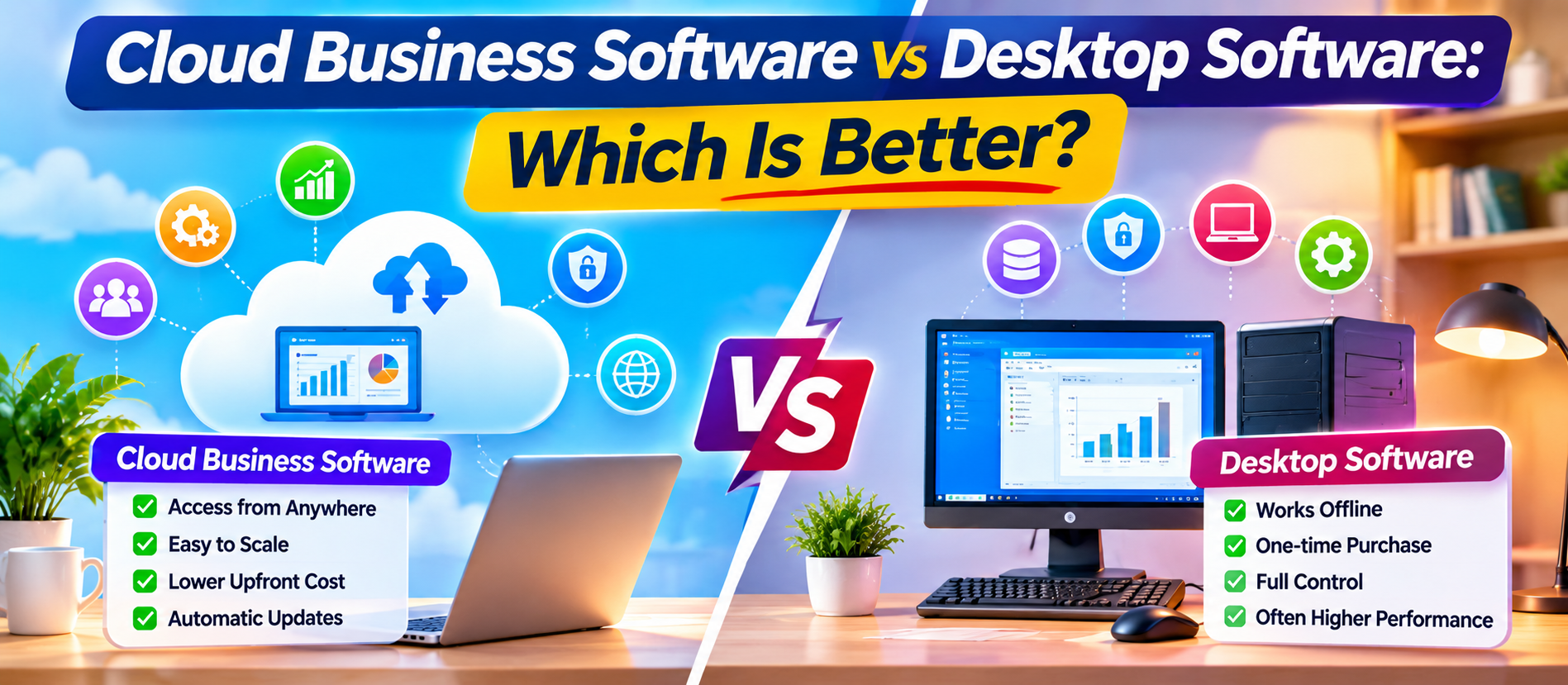
One important decision is whether to use cloud business software or desktop software. Cloud software runs on remote servers and is usually accessed through the internet. Desktop software is installed and runs on a computer. Both options can help a business work efficiently, but they offer different benefits and limitations.
Cloud applications are popular because teams can access information from different locations. Desktop applications remain useful when users need local processing, specialised features, or reliable offline access. Some businesses use both models together.
So, which option is better? The answer depends on your business needs. This guide explains the differences in simple language. It compares cost, security, access, performance, collaboration, maintenance, and scalability. It also shares examples to help you make a practical decision.
What Is Cloud Business Software?
Cloud business software is an application hosted on remote servers. Users access it through a web browser or an app connected to the service. The provider manages much of the technical infrastructure, such as servers and software updates. This delivery model is often called Software as a Service, or SaaS.
Common examples include cloud accounting platforms, online customer relationship management (CRM) systems, project management tools, email services, online storage, and web-based office applications. A business can often access the same account from a laptop, desktop computer, or mobile device.
Cloud computing is designed to provide network access to computing resources when they are needed. The National Institute of Standards and Technology (NIST) describes cloud computing through features such as broad network access, resource pooling, rapid elasticity, and measured service. You can read the NIST cloud computing definition for the formal explanation.
How Does Cloud Business Software Work?
- A business creates an account with a software provider.
- Users sign in through a browser or supported application.
- They enter, view, or update business information.
- The application processes the work on the provider's systems or through a mix of cloud and local resources.
- Approved users can access the information according to their permissions.
For example, a sales team can use a cloud CRM to record customer enquiries. A manager can review the same records from another location. Team members do not need to transfer a database file from one computer to another.
What Is Desktop Business Software?
Desktop business software is installed on a computer or local network. The application runs on the device and may store its working files on the computer, a local server, or another connected storage system. It may require a licence, installation process, and periodic updates.
Examples include traditional accounting packages, desktop publishing applications, graphic design software, video editing tools, engineering programs, and some inventory or billing systems.
Desktop software can work without a constant internet connection when its main features and data are stored locally. This can be useful in places where internet access is slow or unreliable. However, local storage creates a responsibility to protect the computer and maintain reliable backups.
How Does Desktop Business Software Work?
- The user purchases or obtains a valid software licence.
- The application is installed on a compatible computer.
- The user opens the program and works with local files or connected business data.
- The computer performs the required processing.
- The user or IT team manages updates, backups, and device maintenance according to the software setup.
For example, a designer may install a professional graphics application on a workstation. The designer can work with large files using the computer's processor, memory, and graphics hardware.
Cloud Business Software vs Desktop Software: Key Differences
The main difference is where the application runs and how users access it. Cloud software is generally hosted by a provider and accessed over a network. Desktop software is installed on a local device. The distinction is not always absolute. Some desktop applications connect to cloud accounts, and some cloud applications offer offline features.
| Comparison point Cloud business software Desktop business software | ||
| Installation | Often works through a browser or app | Usually installed on a computer |
| Access | Can be accessed from supported devices and locations | Usually tied to installed devices or a local network |
| Internet | Usually needs internet for core functions | Can often work offline |
| Payment model | Commonly subscription-based | May use a one-time, subscription, or volume licence |
| Updates | Often managed by the provider | Usually installed by the user or IT team |
| Collaboration | Often supports shared, real-time work | May need file sharing or local network setup |
| Data storage | Hosted by the provider or in a configured cloud environment | Often stored on local devices or local servers |
| Maintenance | Provider manages much of the infrastructure | Business manages compatible devices and installation |
| Scaling users | Often simple to add or remove user accounts | May require extra licences, installations, or hardware |
| Control | Depends on provider features and contract | Often offers more direct control over local setup |
These are general patterns, not fixed rules. A product's actual features depend on its design, licence, configuration, and provider. Always check the details before choosing.
Advantages of Cloud Business Software
1. Access from Different Locations
Cloud software makes it easier for authorized users to work from different places. A business owner can check a report while travelling. A remote employee can update a project. A sales representative can review customer details during a visit.
This flexibility is useful for businesses with remote teams, multiple branches, or employees who travel. It can also reduce the need to send files manually between colleagues.
2. Easier Team Collaboration
Many cloud applications allow several users to work with the same information. Team members can update records, share documents, assign tasks, and view changes. This reduces confusion caused by multiple copies of the same file.
For example, a marketing team can manage campaign tasks in one shared project workspace. The designer, writer, and manager can see responsibilities and progress in the same system.
3. Lower Initial Hardware and Setup Requirements
Many cloud applications do not require a powerful computer for everyday tasks. The provider handles much of the server infrastructure. A business may be able to start with existing laptops and a reliable internet connection.
This can reduce the initial cost of setting up certain systems. However, the business still needs suitable devices, connectivity, and a plan for recurring software fees.
4. Provider-Managed Updates
Cloud providers commonly manage application updates and server maintenance. Users may receive new features and security fixes without installing a full new version on every computer.
This can reduce routine IT work. It is still important to read release notes, check compatibility with connected tools, and understand when a provider changes a feature or plan.
5. Flexible User Growth
Cloud services often make it easier to add users, storage, or features as a business grows. A company can begin with a small team and expand when required. This can be useful for startups and seasonal businesses.
Scaling is not always unlimited or instant. Higher usage may require a more expensive plan, and some services charge according to users, storage, transactions, or processing.
6. Centralized Data and Administration
Cloud systems can keep business records in a shared environment. Administrators may manage users, permissions, and activity from a central dashboard. This can make it easier to control access when employees join or leave the organization.
Disadvantages of Cloud Business Software
1. Dependence on Internet Connectivity
Many cloud applications need an active internet connection. If the connection becomes slow or unavailable, users may not be able to access important features. This can interrupt work in locations with poor connectivity.
Some providers offer offline modes, but these may support only selected functions. Check exactly what users can do offline and how changes synchronise after the connection returns.
2. Recurring Subscription Costs
Cloud software is often sold through monthly or annual subscriptions. The initial cost may be low, but payments continue for as long as the business uses the service.
Costs can increase when the company adds users, storage, premium features, or AI usage. Compare the total cost over several years rather than looking only at the introductory price.
3. Dependence on the Provider
The provider controls important parts of the service. It may change prices, features, limits, or terms. An outage or account problem can also affect access.
Before choosing a service, review its service commitments, support options, cancellation terms, and data export process. Make sure you understand how to retrieve your information if you move to another platform.
4. Data Privacy and Compliance Questions
Business information may be stored on systems operated by a third party. The business should understand where data is processed, who can access it, how it is protected, and whether the service meets relevant legal and industry requirements.
Read the provider's privacy policy, data processing terms, security documentation, and backup policy. Sensitive or regulated information may need additional review before it is placed in a cloud service.
Advantages of Desktop Business Software
1. Offline Access
Desktop software can often continue working when the internet is unavailable. This is useful for employees who work in remote locations or businesses that cannot afford interruptions caused by network problems.
Offline access depends on the application. Some desktop programs still require online activation, licence checks, cloud storage, or connected services.
2. Direct Control Over Local Files
Desktop software often gives users direct access to files stored on their own devices or local servers. This can be helpful when a business needs a specific folder structure, local workflow, or controlled computing environment.
Local storage does not automatically mean better security. A stolen laptop, damaged hard drive, malware infection, or missing backup can cause serious data loss.
3. Strong Performance for Certain Workloads
Some desktop applications use the computer's processor, memory, graphics card, and storage directly. This can be useful for video editing, 3D design, engineering, scientific work, and handling very large files.
Performance depends on the computer's specifications and the application's design. A cloud service may also provide powerful remote computing for selected tasks.
4. Potentially Predictable Licensing
Some desktop programs offer perpetual licences or fixed-term licences. A business may prefer this model when it wants to avoid a recurring per-user subscription.
However, a one-time purchase does not mean the software has no long-term cost. The business may still pay for upgrades, support, maintenance, compatible hardware, and backup systems.
5. Useful for Specialized Workflows
Some industries depend on specialized desktop programs. These may support advanced design tools, hardware connections, local databases, or workflows that are difficult to replace with a browser-based application.
If a business uses industry-specific software, it should check whether a cloud version offers the same features and compatibility before moving.
Disadvantages of Desktop Business Software
1. Device and Installation Management
Desktop software usually needs to be installed and configured on compatible devices. When a company has many computers, this can take time. New employees may need installation, licence activation, and setup before they can work.
2. Manual Updates and Maintenance
Depending on the application, users or IT staff may need to install updates. Older versions can become unsupported or incompatible with newer operating systems. The business should plan for updates and maintenance instead of waiting for a problem.
3. More Complex Remote Collaboration
Sharing local files can create version problems. Two employees may edit separate copies and later struggle to identify the latest version. A local network or file-sharing system can help, but it needs proper configuration and access control.
4. Backup Responsibility
When important files are stored locally, the business must protect them. A computer failure, theft, accidental deletion, or ransomware attack can damage business records.
Use a documented backup plan. Keep more than one copy, protect backups from unauthorized changes, and test that files can be restored.
5. Hardware Dependence
Desktop applications may require specific operating systems, memory, storage, or graphics hardware. Older computers may not run newer versions smoothly. Upgrading devices can add to the total cost.
Cloud vs Desktop Software: Which Is More Cost-Effective?
Cost is an important factor, but the cheapest first payment is not always the cheapest long-term choice. Compare the total cost of ownership over a realistic period, such as three or five years.
For cloud software, include subscription fees, additional users, storage, premium features, integrations, AI usage, and internet costs. For desktop software, include licence fees, upgrades, hardware, installation, IT support, backups, and maintenance.
| Cost factor Cloud model Desktop model | ||
| Initial setup | Often lower | May be higher due to licences and installation |
| Ongoing payment | Usually subscription or usage-based | Depends on licence and support model |
| Hardware | May use existing general-purpose devices | May need more capable local computers |
| Maintenance | Much infrastructure maintenance handled by provider | More local maintenance responsibility |
| Scaling | Often adds users or capacity through plan changes | May require extra licences or devices |
| Backup | Check provider backup and recovery terms; keep independent copies where needed | Business must arrange and test backups |
The best way to compare costs is to estimate real usage. A cloud plan with a low monthly price may become expensive when every employee needs an account. A desktop licence may look costly at first but remain useful for several years. On the other hand, desktop maintenance and upgrade costs can add up.
Which Option Is More Secure: Cloud or Desktop?
Neither cloud software nor desktop software is automatically secure. Security depends on the provider, the software design, configuration, user behavior, devices, and the business's own procedures.
Cloud providers may operate professional data centers, apply security updates, and offer encryption and access controls. But customers still need to protect passwords, manage permissions, secure devices, and review sharing settings.
Desktop software gives a business more direct control over local systems in some cases. It also means the business is responsible for device security, patching, network protection, backups, and physical access.
Security Checklist for Cloud Software
- Choose a provider with clear security and privacy documentation.
- Enable multi-factor authentication wherever available.
- Use unique passwords and role-based access.
- Review connected applications and shared links.
- Understand data location, retention, export, and deletion terms.
- Check backup, recovery, and incident communication procedures.
Security Checklist for Desktop Software
- Keep the operating system and applications updated.
- Use endpoint protection and a properly configured firewall.
- Limit administrator access and use individual user accounts.
- Encrypt devices and sensitive local storage where appropriate.
- Keep protected backups and test restoration.
- Secure the office network and physical devices.
The UK National Cyber Security Centre provides practical guidance on choosing and using cloud services securely. Businesses should use this type of guidance alongside their own risk assessment.
Which Software Is Better for Different Types of Businesses?
Small Businesses and Startups
Cloud software can be a practical choice for startups that need to begin quickly without managing servers. Online accounting, CRM, email, and project tools can support a small team. A startup should still compare subscription costs and check how easily it can export its data.
Marketing and Creative Agencies
Agencies often benefit from cloud tools for client communication, task management, file sharing, and campaign reporting. Desktop applications may remain essential for graphic design, video editing, animation, and other demanding creative work. A combination is often effective.
Retail Shops and Local Businesses
A retail business may use cloud inventory and accounting tools to review records across locations. A desktop billing system may be useful where internet access is unreliable or local hardware is required. The business should check whether the system can continue billing during a network outage and how it synchronizes records later.
Manufacturing Companies
Manufacturers may need specialized desktop applications for design, production planning, or machine-related work. Cloud systems can support inventory visibility, supplier coordination, reporting, and communication across sites. Integration and downtime planning are especially important.
Educational Institutions
Schools and colleges may use cloud platforms for collaboration, communication, learning management, and shared documents. Desktop applications can still be important in computer labs, design departments, and technical courses. Institutions should consider user access, data privacy, device availability, and support capacity.
Professional Services
Accountants, consultants, legal professionals, and service providers often need secure records, document management, and collaboration. Cloud tools can support access across locations, while desktop software may be required for specialized applications. Data protection and professional obligations should guide the choice.
Can a Business Use Both Cloud and Desktop Software?
Yes. Many businesses use a hybrid approach. This means they combine cloud services with desktop applications and local systems.
For example, a design agency may use desktop software to create graphics and videos. It may store approved files in cloud storage, manage tasks in an online project tool, and use cloud accounting software for invoices. Each system performs the work it handles best.
A hybrid model can provide flexibility, but it needs planning. The business should decide which system is the main source of truth for each type of information. It should also define how files move between systems, who can access them, and how backups are managed.
How to Choose the Right Business Software
Before selecting a platform, write down the business problem. Do not begin with a long list of features. Start with the work employees need to complete and the problems they face today.
1. Understand Your Business Requirements
List the tasks the software must support. Identify the people who will use it, the information it will store, and the systems it must connect to. Separate essential requirements from optional features.
2. Check Internet Reliability
If your team works in areas with unstable connectivity, test the software under those conditions. Ask whether it has offline access, local caching, or a recovery process. Do not assume that every cloud product works offline.
3. Calculate the Full Cost
Estimate licence fees, subscriptions, hardware, support, training, migration, storage, and maintenance. Include the cost of adding users as the business grows. Compare costs over more than one year.
4. Review Security and Data Ownership
Understand who controls the data, how it can be exported, where it is stored, and how access is managed. Check the provider's security information and the business's legal or industry requirements.
5. Test the Important Workflows
Use a trial or demonstration to test real tasks. Check how long common actions take, whether reports are accurate, and whether employees can use the system comfortably. A long feature list does not guarantee a good user experience.
6. Check Support and Future Growth
Review help resources, support hours, training options, and service commitments. Consider whether the product can support more users, locations, records, and integrations in the future.
7. Plan Data Migration and Exit
If you are changing systems, identify how existing information will move. Check supported file formats, migration assistance, export fees, and account cancellation terms. Keep a secure copy of essential records.
Common Mistakes to Avoid When Choosing Software
- Choosing only by price: A low-cost plan may lack essential features or support.
- Ignoring user needs: A powerful system can fail if employees find it difficult to use.
- Assuming cloud means automatic backup: Understand the provider's backup and recovery terms and maintain independent copies where appropriate.
- Assuming desktop means complete privacy: Local devices can be exposed to theft, malware, and unauthorized access.
- Overlooking integration: Check whether the software works with your existing accounting, CRM, website, and communication tools.
- Skipping employee training: Give users clear instructions and time to learn the new system.
- Failing to plan for outages: Decide how essential work will continue if the internet, device, or provider becomes unavailable.
Final Verdict: Cloud Business Software vs Desktop Software
Cloud business software is often a strong choice for organizations that need remote access, shared information, simple collaboration, and flexible user management. It can reduce local infrastructure work and help teams work from different locations. However, it usually depends on internet access and may create ongoing subscription costs.
Desktop software is often a strong choice for specialized applications, local processing, offline work, and workflows that need direct control over devices and files. However, the business must manage installation, updates, hardware, security, and backups.
For many modern businesses, the best answer is not cloud or desktop alone. A hybrid approach can combine cloud collaboration with desktop performance. A company might use cloud accounting and project management while keeping professional design or engineering applications installed locally.
Before making a decision, consider your daily workflows, internet reliability, budget, security requirements, team size, and future plans. Test the software with real tasks and review the full cost. The best business software is the one that helps your team work reliably, protects important information, and supports your goals.
Frequently Asked Questions (FAQs)
1. What is the main difference between cloud software and desktop software?
Cloud software is generally hosted on remote servers and accessed through the internet. Desktop software is installed and runs on a local computer. Some products combine both approaches.
2. Is cloud business software better than desktop software?
Cloud software is often better for remote access and collaboration. Desktop software can be better for offline work, local processing, and specialized applications. The right choice depends on business requirements.
3. Is desktop software cheaper than cloud software?
Not always. Some desktop products have a one-time licence, but hardware, upgrades, maintenance, and backups add costs. Cloud software often uses subscriptions. Compare the total cost over several years.
4. Can cloud software work without the internet?
Some cloud applications offer limited offline features, but many need an internet connection for their main functions. Check the provider's offline support and synchronization rules before relying on it.
5. Is cloud software secure for small businesses?
It can be secure when the provider has suitable protections and the business configures accounts correctly. Use multi-factor authentication, strong access controls, secure devices, and clear data policies.
6. Does desktop software store data on my computer?
Many desktop applications store working files locally, but some use local servers, network storage, or cloud accounts. Check the product's storage and synchronization settings.
7. What is SaaS in business software?
SaaS means Software as a Service. It is a model where a provider hosts an application and makes it available to customers, usually through a web browser or connected app. Customers commonly pay a subscription or usage-based fee.
8. Can I move from desktop software to cloud software?
Yes, if the cloud product supports your workflows and can import your existing data. Plan the migration, test records, check file formats, and keep a secure backup before switching.
9. What is hybrid business software?
A hybrid approach combines cloud services with desktop or locally hosted applications. A business might use cloud tools for collaboration and desktop programs for specialized tasks or offline work.
10. Which option is best for a business with multiple branches?
Cloud software can make it easier for authorized teams in different branches to use shared information. However, local connectivity, security, integrations, and offline procedures still matter. A hybrid setup may be suitable.
11. Does cloud software need powerful computers?
Many browser-based business applications can run on ordinary modern computers because much of the processing happens on remote systems. Some tasks, such as video editing or large data processing, may still need powerful local hardware.
12. What should I check before buying business software?
Review features, integrations, pricing, user limits, security, data export, support, offline access, backup arrangements, and contract terms. Test the software with real business tasks before committing.
About Digiifrog
Digiifrog shares practical information about technology, artificial intelligence, digital marketing, software, automation, and online business growth. Our aim is to make complex digital topics easier to understand and use.
Visit: www.digiifrog.com
Further Reading and References
- National Institute of Standards and Technology (NIST): The NIST Definition of Cloud Computing
- UK National Cyber Security Centre: Introduction to Cloud Security
- Government of British Columbia: Cloud and On-Premise Software Comparison
Ready to Grow?
Talk to us about a strategy tailored to your brand — we will help you stand out in search, AI discovery and social.
Comments (0)
Log in to leave a comment.