📋 Quick Summary
In this article:
Quick Answer: What Is the Best File Recovery Software in 2026?
How File Recovery Software Works
Important: What to Do Immediately After Data Loss
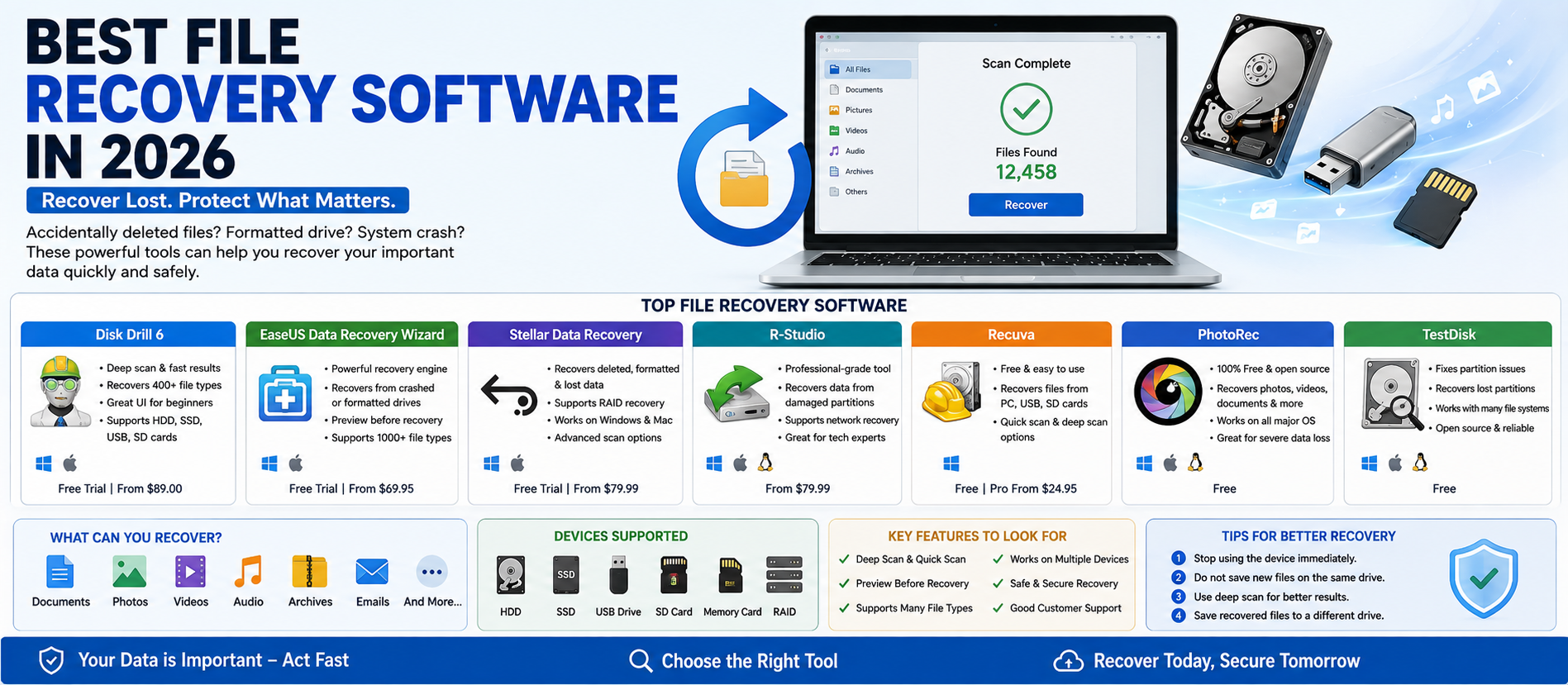
Best File Recovery Software at a Glance
1. Disk Drill: Best All-Around File Recovery Software
2. Recuva: Best for Simple Windows File Recovery
3. Ease US Data Recovery Wizard: Best for Guided Recovery
4. Stellar Data Recovery: Best for Broad Recovery Needs
5. R-Studio: Best for Advanced Users and Technicians
6. Test Disk: Best Free Tool for Partition Recovery
7. Photo Rec: Best Free Option for Deep File Recovery
Free vs. Paid File Recovery Software
💡 Key Insight
Accidentally deleting an important file can be stressful. A document, photo, video, project file, or entire folder may appear to be gone in seconds. The good news is that deleted data is not always permanently destroyed immediately. In many situations, file recovery software can scan a storage device and locate data that is still recoverable.
However, recovery is never guaranteed. The success rate depends on the storage device, the file system, the type of data loss, physical condition, encryption, overwrite activity, and how quickly you stop using the device.
This guide explains the best file recovery software in 2026, including beginner-friendly, free, advanced, and professional options. It also explains how file recovery works, when software can help, when it cannot help, and what to do immediately after data loss.
Digiifrog creates clear, structured, and search-friendly content about software, technology, education, and digital growth. Our content strategy considers SEO, AEO, GEO, and AI Search Optimization.
Quick Answer: What Is the Best File Recovery Software in 2026?
The best choice depends on the type of data loss and your level of technical experience. Disk Drill is a strong all-around choice for Windows and Mac users who want a modern interface and broad recovery features. Recuva remains a practical option for simple Windows file recovery. Test Disk and Photo Rec are powerful free and open-source tools for users comfortable with more technical workflows. Ease US Data Recovery Wizard and Stellar Data Recovery are popular commercial options with guided recovery processes. R-Studio is better suited to advanced users and technicians who need deeper control over storage and recovery tasks.
How File Recovery Software Works
When a file is deleted, the operating system may remove its reference from the file system instead of immediately erasing every piece of data. Until that storage space is reused, recovery software may be able to find file information or reconstruct data from remaining storage sectors.
Recovery software generally uses one or more methods:
- Quick Scan: Looks for recently deleted file records and metadata.
- Deep Scan: Searches more thoroughly across the storage device.
- Signature Recovery: Identifies files by known file patterns when original metadata is missing.
- Partition Recovery: Searches for lost, deleted, or damaged partitions.
- File System Analysis: Attempts to rebuild information about files and folders.
These methods have different strengths. A quick scan may preserve original names and folders when deletion is recent. A signature-based recovery may find more files but sometimes loses original filenames or directory structure.
Important: What to Do Immediately After Data Loss
The first few minutes can matter more than the software you choose.
- Stop using the affected drive. New files can overwrite recoverable data.
- Do not install recovery software on the affected drive if possible.
- Do not save recovered files back to the same drive. Use another storage device.
- Avoid repeated formatting or repair attempts.
- If the drive is physically failing, stop experimenting.
For example, recovery guidance for Recuva recommends saving recovered files to another drive to reduce the risk of overwriting data that may still be recoverable.
Best File Recovery Software at a Glance
| Soft ware Best For Platform Learning Level | |||
| Disk Drill | All-around recovery | Windows, macOS | Easy to moderate |
| Recuva | Simple deleted-file recovery | Windows | Easy |
| Ease US Data Recovery Wizard | Guided consumer recovery | Windows, macOS | Easy |
| Stellar Data Recovery | Broad recovery scenarios | Windows, macOS | Easy to moderate |
| R-Studio | Advanced and technical recovery | Windows, macOS, Linux | Advanced |
| Test Disk | Partition and file system recovery | Windows, macOS, Linux | Advanced |
| Photo Rec | Free signature-based file recovery | Windows, macOS, Linux | Moderate to advanced |
1. Disk Drill: Best All-Around File Recovery Software
Disk Drill is designed for users who want a guided interface while still having access to deeper recovery functions. It supports recovery from internal and external storage devices and works with many common file systems and file types.
Its modern versions also include additional utilities related to storage monitoring, data protection, backups, duplicate detection, and recovery workflows. Disk Drill can be useful for deleted files, lost partitions, formatted drives, memory cards, USB drives, and other accessible storage devices.
Best for: Home users, creators, photographers, and general Windows or Mac users.
Main advantages:
- Modern and understandable interface.
- Support for multiple recovery methods.
- Works with internal and external storage.
- File preview and filtering options.
- Partition and deep scanning capabilities.
- Additional data protection and disk tools.
Potential limitation: Advanced recovery cannot overcome every physical hardware failure, overwrite event, or encryption problem.
2. Recuva: Best for Simple Windows File Recovery
Recuva is a long-established Windows recovery tool. It is a practical choice when files were recently deleted from a computer, recycle bin, memory card, USB drive, or other supported storage.
Its simple workflow makes it attractive to beginners. Users can select the type of files they want to recover and scan a location. Recuva can also perform a deeper search for more difficult recovery cases.
Best for: Windows users recovering recently deleted documents, photos, videos, music, and similar files.
Main advantages:
- Free version available.
- Simple recovery workflow.
- Deep scan option.
- Useful for common file types.
- Can work with hard drives, memory cards, and USB storage.
Potential limitation: It is focused on Windows and may not be the best choice for complex enterprise, RAID, or highly technical recovery work.
3. Ease US Data Recovery Wizard: Best for Guided Recovery
Ease US Data Recovery Wizard is aimed at users who want a guided process for finding deleted or lost files. It is commonly used for accidental deletion, formatting, partition problems, and other logical data-loss situations.
Best for: Users who want a consumer-focused interface and guided recovery process.
Main advantages:
- Easy-to-follow scanning workflow.
- Preview and file selection options.
- Support for common data-loss situations.
- Windows and macOS versions.
- Suitable for beginners.
Potential limitation: Free recovery limits and licensing terms can vary, so users should review the current plan before starting a large recovery project.
4. Stellar Data Recovery: Best for Broad Recovery Needs
Stellar Data Recovery provides tools for recovering different types of files and storage scenarios. It is commonly considered by users who need to recover documents, photos, videos, and other lost data from supported storage devices.
Best for: Users who want a commercial recovery solution with different product levels for different recovery requirements.
Main advantages:
- Guided recovery workflow.
- Support for many file types.
- Options for different storage scenarios.
- Photo and media recovery workflows.
- Windows and macOS availability.
Potential limitation: Advanced recovery features may require a higher-level product or license.
5. R-Studio: Best for Advanced Users and Technicians
R-Studio is designed for users who need more technical control. It is commonly associated with advanced data recovery, disk analysis, network recovery, and complex storage environments.
Best for: IT professionals, technicians, and experienced users.
Main advantages:
- Advanced recovery controls.
- Support for multiple operating systems.
- Useful for complex file system analysis.
- Suitable for technical recovery tasks.
- More detailed control than basic consumer tools.
Potential limitation: The interface and concepts may be overwhelming for complete beginners.
6. Test Disk: Best Free Tool for Partition Recovery
Test Disk is a free and open-source recovery utility focused heavily on partition recovery, boot-sector repair, and damaged or deleted file systems. It can be useful when a partition disappears or a storage device has a logical structure problem.
Best for: Technical users dealing with lost partitions and file system problems.
Main advantages:
- Free and open-source.
- Works across major desktop platforms.
- Useful for lost partition recovery.
- Supports multiple file systems.
- Powerful for technical troubleshooting.
Potential limitation: The workflow is more technical than modern consumer applications.
7. Photo Rec: Best Free Option for Deep File Recovery
Photo Rec is a free and open-source file recovery utility that uses file signatures to search for lost data. Despite its name, it can recover more than photos. It may be useful for videos, documents, audio, and other supported file types.
Photo Rec can be especially useful when the original file system metadata is badly damaged. The trade-off is that recovered files may not always retain their original names or folder structure.
Best for: Budget-conscious and technical users who need a powerful free recovery option.
Main advantages:
- Free and open-source.
- Signature-based recovery.
- Works with many storage devices.
- Cross-platform support.
- Useful when normal file metadata is unavailable.
Free vs. Paid File Recovery Software
Free software is often enough for a small recovery job. Paid software may provide higher recovery limits, advanced scanning, file previews, technical support, specialized formats, RAID tools, or repair features.
A smart approach is to compare the actual problem before paying.
- Recently deleted file: Try a simple or free tool first.
- Lost partition: Consider Test Disk or advanced recovery software.
- Important photos from a memory card: Use a tool with strong media recovery and preview features.
- Business or RAID storage: Consider advanced software or a professional recovery service.
- Physically damaged drive: Avoid repeated DIY attempts.
Can File Recovery Software Recover Data from SSDs?
SSD recovery can be more difficult than HDD recovery. Many modern SSDs use TRIM and other storage-management processes. After deletion, these processes may make old data unavailable much faster.
This does not mean SSD recovery is always impossible. Success depends on the operating system, device state, encryption, overwrite activity, controller behavior, and other factors. The most important rule remains the same: stop writing new data to the affected drive immediately.
Can You Recover Files from a Formatted Drive?
Sometimes, yes. Formatting does not always destroy every recoverable piece of data immediately. A recovery tool may find files or file signatures if the relevant storage areas have not been overwritten.
However, repeated formatting, repartitioning, encryption changes, and new file activity can reduce recovery chances.
When Recovery Software Will Not Be Enough
Software recovery is mainly designed for logical data loss. It may not solve serious physical hardware problems.
Stop DIY recovery and consider professional help if:
- The drive makes clicking, grinding, or unusual sounds.
- The device is not detected consistently.
- The drive was exposed to water, fire, or severe impact.
- The SSD or HDD has controller or mechanical failure.
- The data is extremely valuable and cannot be risked.
- The storage device shows repeated read errors.
Repeated scans on a failing drive can sometimes increase the risk of permanent loss. If possible, preserve the device and seek professional advice.
How to Choose the Right File Recovery Software
1. Identify the Type of Data Loss
Was the file deleted, was the drive formatted, did a partition disappear, or is the device physically failing? The answer changes the best recovery strategy.
2. Check Operating System Compatibility
Make sure the software supports your version of Windows, macOS, or Linux and the storage device you need to scan.
3. Check the File System
NTFS, FAT, ex FAT, APFS, HFS+, ext4, Re FS, and other file systems can require different recovery capabilities.
4. Look for Preview Before Recovery
Previewing files can help you decide whether the data is actually recoverable before paying for a license.
5. Check Recovery Limits Carefully
A free version may scan unlimited data but limit the amount you can actually restore.
6. Prioritize Safe Recovery Workflow
The best software should make it easy to scan one device and save recovered data to another device.
Step-by-Step Safe Recovery Process
- Stop using the affected storage device.
- Prepare a separate drive with enough free space.
- Install recovery software on a different healthy drive when possible.
- Connect the affected device.
- Start with a normal or quick scan.
- Use deep scanning only when needed.
- Filter results by file type, date, or name when available.
- Preview important files.
- Recover selected files to a separate storage device.
- Open and verify the recovered files.
Common File Recovery Mistakes
Continuing to Use the Drive
This is one of the biggest mistakes. New data may overwrite deleted information.
Recovering Files to the Same Drive
Saving recovered files back to the affected device can overwrite other data you still want to recover.
Installing Multiple Recovery Tools on the Affected Drive
Every installation writes data. Use a different drive whenever possible.
Believing Recovery Is Guaranteed
No software can promise success in every case. Recovery depends on the actual condition of the storage and data.
Ignoring Physical Failure Signs
A clicking hard drive or repeatedly disconnecting device may require a professional service instead of more software scans.
File Recovery Software and AI in 2026
AI is beginning to influence software workflows, but traditional data recovery still depends heavily on storage analysis, file systems, signatures, metadata, and device condition.
AI-assisted features can potentially improve:
- File classification.
- Search and filtering.
- Recovery workflow guidance.
- Photo and media repair.
- Detection of unusual storage patterns.
- Prioritization of likely important files.
AI does not change the basic physical reality of overwritten or destroyed data. If storage blocks have been permanently replaced or hardware is severely damaged, software intelligence alone cannot recreate the original data with certainty.
How Digiifrog Supports Software and Technology Content
Digiifrog creates structured and readable content for software companies, technology businesses, education platforms, and digital audiences.
- SEO Content Strategy
- AEO and Answer-Focused Content
- GEO and Generative Search Optimization
- AI Search Optimization
- Software and Technology Content
- Educational and Business Content
Frequently Asked Questions
What is the best free file recovery software in 2026?
For simple Windows recovery, Recuva is a practical option. For more technical and powerful free recovery, Test Disk and Photo Rec are strong choices. The best option depends on whether you need deleted-file recovery, partition recovery, or signature-based recovery.
Can deleted files really be recovered?
Yes, sometimes. If the storage space has not been overwritten and the device remains accessible, recovery software may be able to locate and restore the data.
What is the best file recovery software for beginners?
Disk Drill, Recuva, Ease US Data Recovery Wizard, and Stellar Data Recovery are generally easier starting points because they use guided interfaces.
Can I recover files from a USB drive or SD card?
Yes, many recovery tools can scan USB drives and memory cards. Stop using the device immediately to reduce the chance of overwriting lost data.
Can permanently deleted files be recovered?
Sometimes. “Permanently deleted” usually means the file bypassed the recycle bin, but the underlying storage data may still exist until it is overwritten or removed by storage-management processes.
Is it safe to use file recovery software?
Reputable recovery software can be used safely when downloaded from an official source. The main risk is writing new data to the affected drive. Always save recovered files to another device.
Can recovery software fix a physically damaged hard drive?
Usually not. Software is best for logical data loss. Mechanical or electronic failure may require professional hardware recovery.
Conclusion
The best file recovery software in 2026 depends on your device, operating system, budget, technical experience, and the type of data loss.
Disk Drill is a strong all-around choice for Windows and Mac users. Recuva remains useful for simple Windows recovery. Ease US and Stellar provide guided commercial workflows. R-Studio offers deeper control for advanced users. Test Disk and Photo Rec remain valuable free tools for partition and file recovery.
⚠ Watch Out
But software selection is only one part of successful recovery. The most important action is to stop using the affected drive immediately. Avoid installing software or saving files to that drive. Recover data to a separate storage device, and do not continue DIY experiments if the drive shows signs of physical failure.
The sooner you act and the less you write to the affected storage, the better your chances may be.
Disclaimer: This article is for general educational and informational purposes. File recovery results vary and cannot be guaranteed. Software features, pricing, operating system compatibility, licensing, and recovery limits can change. Important business, legal, or irreplaceable data may require professional data recovery services.
Digiifrog
Website: www.digiifrog.com
Ready to Grow?
Talk to us about a strategy tailored to your brand — we will help you stand out in search, AI discovery and social.

Comments (0)
Log in to leave a comment.