📋 Quick Summary
In this article:
Quick Answer: What Is the Best Git GUI Software?
Best Git GUI Software at a Glance
1. GitHub Desktop
Why Developers Choose GitHub Desktop
2. Git Kraken
3. Source tree
Why Source tree Remains Relevant
💡 Key Insight
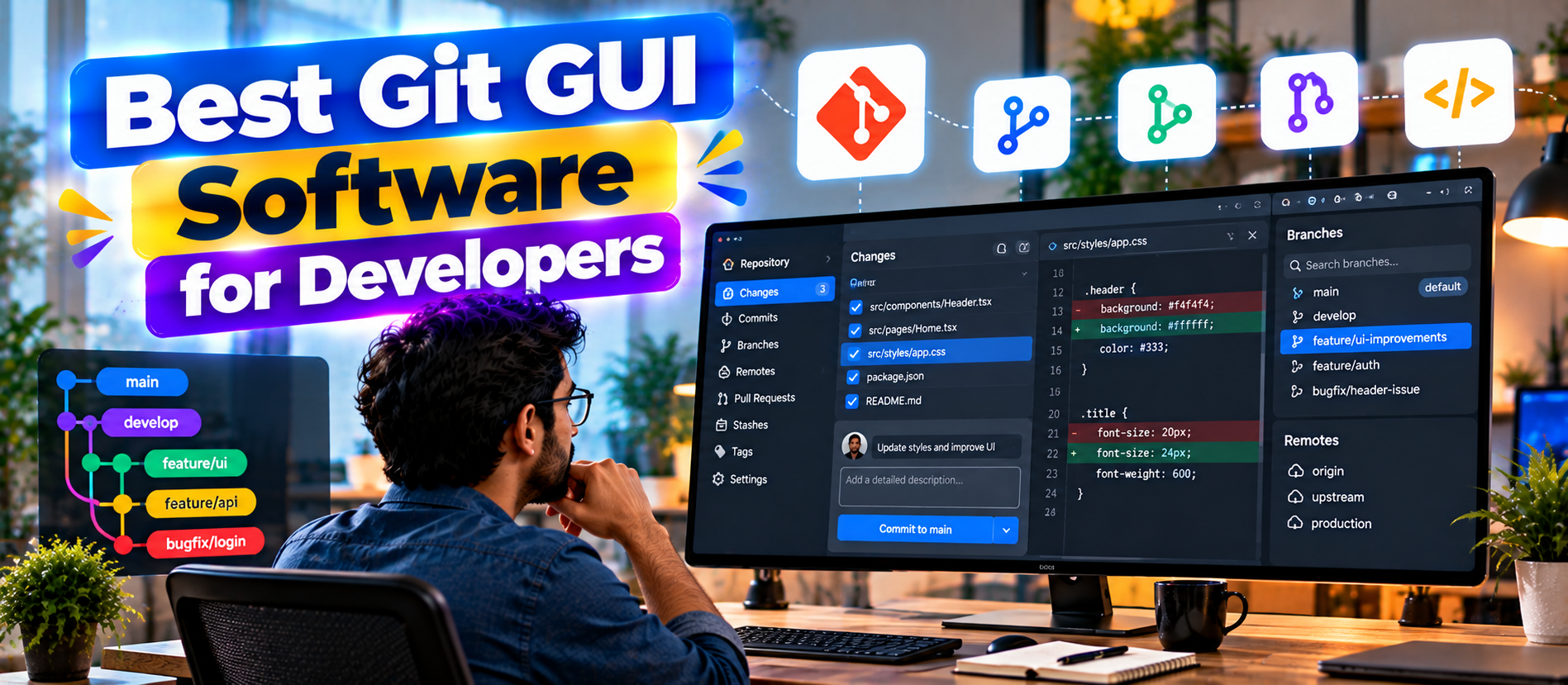
Best Git GUI Software for Developers: Top Git Clients Compared Git is one of the most important tools in modern software development. It gives developers a powerful way to track code, create branches, review changes, collaborate with teams, and recover from mistakes. But Git is also command-heavy. When a repository becomes large, a visual interface can make branches, commits, diffs, stashes, merges, and conflicts much easier to understand.
This is where Git GUI software becomes useful. A Git GUI client provides a visual layer over Git commands. Instead of remembering every command and option, developers can inspect changes, stage selected lines, create branches, compare histories, resolve conflicts, and push or pull code through a graphical interface. Git's own documentation also notes that graphical interfaces can be useful when a visual representation is better suited to the task, while the command line remains the most complete interface to Git.
Quick Answer: What Is the Best Git GUI Software?
There is no single best Git GUI for every developer. The right choice depends on your operating system, Git hosting provider, experience level, team workflow, repository size, and need for advanced features.
- Best for beginners and GitHub-first workflows: GitHub Desktop
- Best for visual Git workflows and cross-platform teams: Git Kraken
- Best free traditional desktop client: Source tree
- Best for fast individual workflows: Fork
- Best premium power-user client: Tower
- Best cross-platform advanced Git client: Smart Git
- Best for developers who prefer the terminal: Lazy git
The most important point is simple: choose the Git client that makes your normal workflow clearer and safer. A beautiful interface is useful only if it helps you understand what Git is actually doing.
What Is Git GUI Software?
A Git GUI, or graphical user interface for Git, is a desktop application that lets you work with Git repositories visually. It can sit between you and the Git command line while still using Git underneath.
Typical Git GUI features include:
- Clone and create repositories
- Stage and unstage files or individual lines
- Write and amend commits
- Create, rename, delete, and switch branches
- Fetch, pull, and push changes
- View commit history
- Compare branches
- Merge branches
- Rebase branches
- Cherry-pick commits
- Manage stashes
- Resolve merge conflicts
- Inspect file history and blame information
- Manage Git LFS and submodules in supported clients
- Work with GitHub, GitLab, Bitbucket, Azure DevOps, or other remotes
Git itself includes graphical tools such as git-gui and gitk, while many third-party clients provide broader workflows and richer interfaces. Git's official documentation explains that different interfaces are designed around different workflows, so the goal is not to find one universally superior client. The goal is to find the interface that fits your work.
Best Git GUI Software at a Glance
| Git GUI Best For Key Strength Platform Focus | |||
| GitHub Desktop | Beginners and GitHub users | Simple workflow and GitHub integration | Windows, macOS |
| Git Kraken | Teams and visual Git users | Commit graph, collaboration and advanced workflows | Windows, macOS, Linux |
| Source tree | Free desktop Git users | Visual repository management | Windows, macOS |
| Fork | Individual developers | Fast native workflow and advanced Git features | Windows, macOS |
| Tower | Professional power users | Deep Git controls, undo, rebase and integrations | Windows, macOS |
| Smart Git | Advanced cross-platform users | Broad Git feature coverage | Windows, macOS, Linux |
| Lazy git | Terminal-focused developers | Keyboard-driven Git UI | Windows, macOS, Linux |
1. GitHub Desktop
Best for: beginners, GitHub-first teams, and developers who want a clean free GUI.
GitHub Desktop is one of the easiest places to start if you are new to Git. It is a free, open-source desktop application maintained around the GitHub workflow. GitHub's documentation describes it as a graphical way to work with repositories and explains that it can make Git easier to approach than the command line.
The interface focuses on the core developer loop: clone a repository, inspect changes, select what should be committed, write a commit message, create or switch branches, and push changes. Developers can also create pull requests through the application.
Why Developers Choose GitHub Desktop
- Simple and approachable interface
- Strong GitHub integration
- Useful for learning Git concepts visually
- Good support for everyday commit, branch, pull and push tasks
- Free and open source
- Useful visual confirmation before committing changes
Limitations
GitHub Desktop is intentionally focused. Developers who need advanced repository visualization, highly detailed rebase controls, complex multi-host workflows, or deep enterprise Git operations may eventually want a more powerful client.
Best choice if: your team primarily uses GitHub and you want a low-friction Git GUI.
2. Git Kraken
Best for: developers and teams that want a highly visual Git workflow.
Git Kraken is designed around visualizing Git activity. Its commit graph is one of its most recognizable features. Instead of reading a long terminal history, developers can see branches and commits as a visual structure.
Git Kraken supports workflows across major Git hosting platforms, including GitHub, GitLab, Bitbucket, and Azure DevOps. Its current product direction also includes AI-assisted Git workflows. Git Kraken documents AI features for tasks such as commit-message generation, explaining commits and branches, drafting pull-request content, and assisting with merge conflicts.
Key Strengths
- Strong visual commit graph
- Cross-platform desktop support
- GitHub, GitLab, Bitbucket and Azure DevOps integrations
- Visual branch and merge workflows
- Pull-request management inside the client
- Advanced merge conflict tools
- AI-assisted Git tasks on supported paid plans
- Useful multi-repository workflow features
Who Should Use Git Kraken?
Git Kraken is a strong option for developers who regularly work with multiple branches and repositories. It is especially useful when visualizing the history is important. Teams that want a richer collaboration layer around pull requests and repository status may also find it valuable.
Best choice if: you want a polished, visual Git environment with broad hosting integrations.
3. Source tree
Best for: developers who want a free traditional Git GUI with strong visual repository management.
Source tree is a long-standing Git desktop application associated with Atlassian. Its official site positions it as a free Git client for Windows and Mac. It provides a visual way to inspect repositories and manage everyday Git operations.
Source tree is useful for developers who want more visibility than a minimal Git client provides. You can inspect branches, review change sets, stash work, and cherry-pick between branches without relying entirely on terminal commands.
Why Source tree Remains Relevant
- Free Git client
- Windows and macOS support
- Visual branch and commit management
- Useful staging and change set review
- Stash support
- Cherry-pick support
- Accessible for both beginners and experienced users
Potential Drawbacks
Source tree is best suited to developers who like a conventional desktop Git interface. Developers who want a very modern collaboration layer, built-in AI workflows, or a highly native lightweight application may prefer another client.
Best choice if: you want a free, established Git GUI for standard Git workflows.
4. Fork
Best for: individual developers who want a fast and focused Git client.
Fork is known for a clean interface and strong support for advanced Git operations. Its official feature list includes interactive rebase, merge-conflict assistance, line-by-line staging, cherry-pick, rebase, Git LFS, submodules, Git-flow, blame, reflog, and image diffs.
That combination makes Fork attractive to developers who already understand Git and want a GUI that does not hide advanced functionality.
Fork Highlights
- Fast, focused desktop workflow
- Windows and macOS support
- Interactive rebase
- Line-by-line staging
- Merge conflict helper and resolver
- Reflog access
- Git LFS support
- Submodule support
- Blame and history views
- Image diff support
Fork uses a paid license model, with the vendor currently listing a one-time price and free evaluation. Pricing can change, so developers should verify the current price before purchase.
Best choice if: you are an experienced developer who wants speed and advanced Git controls without a large collaboration platform.
5. Tower
Best for: professional developers and teams that use Git heavily every day.
Tower is a premium Git client for Windows and macOS. It focuses on combining advanced Git functionality with a polished native desktop experience.
Tower provides features such as interactive rebase, single-line staging, work trees, Git LFS, submodules, pull requests, reflog, conflict resolution, branch review, file history, blame, cherry-pick, and Git-flow. It also supports integrations with GitHub, GitLab, Bitbucket, and Azure DevOps.
Why Tower Stands Out
- Powerful interactive rebase workflow
- Visual conflict resolution
- Granular staging
- Pull-request management
- Work tree support
- Git LFS and submodule support
- Reflog and recovery tools
- Strong undo capabilities
- Quick Actions for frequent operations
- AI-assisted commit support
Tower is especially interesting for developers who are comfortable with Git but want a safer visual layer for complex operations. Its undo-oriented workflow can also reduce the fear of making a mistake during advanced Git operations.
Best choice if: Git is central to your daily development work and you are willing to pay for a premium experience.
6. Smart Git
Best for: advanced developers who want a broad Git feature set across multiple operating systems.
Smart Git is another established Git client that targets users who need more than basic commit and push functionality. It is particularly relevant for teams and individuals who work across Windows, macOS, and Linux environments.
A major advantage of a broad cross-platform client is consistency. If a development team uses different operating systems, having a similar Git interface can reduce workflow differences.
What to Look For in Smart Git
- Advanced Git repository management
- Cross-platform desktop support
- Visual history and branch workflows
- Merge and rebase operations
- Staging and diff inspection
- Support for complex Git repositories
Smart Git can be a good fit when Linux support is a firm requirement and a traditional desktop Git client is preferred over a terminal UI.
Best choice if: you need a feature-rich Git GUI that works across Windows, macOS, and Linux.
7. Lazy git
Best for: terminal-first developers who still want a visual interface.
Lazy git is different from the desktop applications above. It is a terminal UI rather than a conventional desktop application. It gives keyboard-focused developers a visual dashboard for Git operations without requiring them to leave the terminal environment.
This can be especially useful when development happens over SSH, inside remote environments, or in terminal-heavy workflows.
Why Developers Like Terminal Git UIs
- Keyboard-driven workflow
- Works naturally inside terminals
- Useful for remote development
- Fast navigation for experienced users
- Does not require a large desktop GUI
Lazy git is not necessarily the best first Git client for someone who is completely new to Git. Its value becomes clearer when the developer already understands Git and wants a faster visual workflow inside the terminal.
Git GUI vs Git Command Line: Which Is Better?
This is not really an either-or decision.
The command line exposes Git's full power and is essential knowledge for serious developers. A GUI, however, can make visual tasks much easier. Git's own documentation makes this distinction clear: graphical clients are often designed around particular workflows, while the command line provides the broadest control.
| Task GUI Advantage CLI Advantage | ||
| Basic commit | Visual staging | Very fast command |
| Branch management | Easy visual navigation | Precise and scriptable |
| Complex history | Commit graphs are easier to scan | Powerful filters and scripting |
| Merge conflicts | Side-by-side visual comparison | Maximum control |
| Automation | Limited by application features | Excellent scripting potential |
| Remote development | Depends on client | Excellent over SSH |
| Learning Git | More visual | Teaches underlying commands directly |
The strongest workflow is often hybrid. Use the GUI for visual work and the command line when you need scripting, automation, unusual Git operations, or direct control.
What Features Should You Check Before Choosing a Git GUI?
1. Branch Visualization
If you work with feature branches, release branches, hotfixes, and long-running development branches, a clear graph can save time. You should be able to see where branches started, where they diverged, and where they were merged.
2. Staging Controls
Good staging tools let you commit only the changes that belong together. Line-by-line or hunk-based staging is especially useful when a working file contains multiple unrelated changes.
3. Merge and Conflict Resolution
Merge conflicts are a normal part of collaborative development. A useful GUI should make both sides of the conflict clear and help you inspect the final result before committing.
4. Interactive Rebase
Interactive rebase can help clean up a branch before review. A strong Git GUI should make it easier to reorder, squash, edit, or drop commits while showing exactly what will happen.
Because rebase can rewrite history, developers should understand the implications before using it on already-published shared branches.
5. Pull Request Integration
If your workflow is pull-request driven, integrated PR features can reduce context switching. Check whether the client supports your hosting provider and whether it can create, review, comment on, and merge pull requests.
6. Repository Performance
Do not judge a Git GUI only by screenshots. Test it with the repositories you actually use. A client that feels fast on a small project may behave differently with a very large history, many branches, Git LFS files, or large working trees.
7. Platform Support
Operating system support can eliminate otherwise excellent options. GitHub Desktop and Source tree focus on Windows and macOS, while Git Kraken and Smart Git provide Linux options. Tower and Fork are strong Windows/macOS choices.
8. Hosting Integration
Check support for GitHub, GitLab, Bitbucket, and Azure DevOps. A Git client can be excellent at local Git operations but less useful if it does not fit the remote platform used by your team.
Which Git GUI Is Best for Beginners?
GitHub Desktop is usually the easiest starting point for beginners, especially if the project is hosted on GitHub. Its interface helps users understand what changed before they commit.
Source tree can also be a good learning tool because it exposes more repository information visually. Git Kraken is another option for beginners who want a more visual, feature-rich environment and are comfortable with a larger interface.
However, beginners should not use a GUI as a reason to avoid learning Git concepts. You should still understand commits, branches, remotes, staging, merges, rebases, and pull requests.
Which Git GUI Is Best for Advanced Developers?
Advanced developers should look beyond simple commit and push features. Interactive rebase, reflog, work trees, granular staging, conflict resolution, submodules, Git LFS, branch comparison, and recovery tools become more important.
Fork, Tower, Git Kraken, and Smart Git are strong candidates for advanced workflows. The best choice depends on whether you prioritize speed, visual collaboration, cross-platform support, or deep Git controls.
Git GUI Software for Teams
Teams should evaluate Git clients differently from individual developers. A team needs consistency, hosting integration, security controls, onboarding support, and predictable workflows.
Before standardizing on one client, ask:
- Does it support our Git hosting provider?
- Does it work on every operating system used by the team?
- Can developers review diffs before committing?
- Does it handle merge conflicts clearly?
- Can it manage pull requests?
- Does it support SSH and signed commits where required?
- Are licenses affordable for the whole team?
- Does the vendor provide documentation and support?
- Does the application fit our security and privacy requirements?
- Can developers still use the Git CLI when necessary?
AI Features Are Changing Git GUI Software
Modern developer tools are increasingly adding AI to version-control workflows. Git Kraken, for example, documents AI assistance for commit messages, pull-request text, explanations, and merge conflicts. Tower also lists AI-assisted commit support.
These features can reduce repetitive work, but they should not replace developer review. A generated commit message can be wrong. An AI-assisted merge suggestion can also misunderstand the intent of a code change.
The safest approach is to use AI as an assistant. Let it summarize, suggest, or explain. Keep the developer responsible for the final commit, merge, rebase, and release decision.
How Git GUI Software Improves Developer Productivity
Less Command Memorization
A GUI reduces the need to remember long commands and flags for common tasks.
Better Visual Context
Branch graphs and commit histories can reveal relationships that are difficult to understand from a plain text list.
Safer Staging
Line-level staging makes it easier to create focused commits.
Faster Conflict Investigation
Side-by-side diff and merge views make conflicting changes easier to compare.
Lower Context Switching
Integrated pull requests, issue links, repository search, and remote operations can reduce the number of tools developers need to open.
Better Recovery
Features such as reflog access, undo workflows, and visual history can make it easier to recover from mistakes.
Common Mistakes When Choosing a Git GUI
- Choosing only by appearance: A beautiful UI does not guarantee strong Git functionality.
- Ignoring your hosting provider: Check GitHub, GitLab, Bitbucket, or Azure DevOps support before adopting a tool.
- Ignoring your operating system: Platform availability matters.
- Using advanced commands without understanding them: A GUI does not remove Git's risks.
- Ignoring repository size: Test large and complex repositories.
- Overlooking licensing: Check whether the client is free, subscription-based, or a one-time purchase.
- Trying to replace the CLI completely: Professional developers should still know the underlying Git commands.
How to Choose the Best Git GUI Software for Your Workflow
- Identify your Git hosting platform. Start with GitHub, GitLab, Bitbucket, or Azure DevOps.
- Choose your operating system requirements. Remove clients that do not support your environment.
- List your daily Git tasks. Focus on commits, branches, rebase, merge, stash, PRs, and history.
- Test conflict resolution. Create a safe test repository and compare how different clients handle conflicts.
- Test large repositories. Performance matters more than marketing screenshots.
- Check advanced features. Look for work trees, reflog, Git LFS, submodules, interactive rebase, and granular staging if you need them.
- Review licensing. Consider both individual and team costs.
- Keep the CLI available. Choose a GUI that complements your Git knowledge instead of replacing it.
Best Git GUI Software by Developer Type
| Developer Type Recommended Git GUI Why | ||
| Git beginner | GitHub Desktop | Simple visual workflow |
| GitHub-first developer | GitHub Desktop | Strong GitHub workflow |
| Visual Git power user | Git Kraken | Rich graph and collaboration features |
| Free desktop user | Source tree | Free and feature-rich |
| Fast individual developer | Fork | Focused advanced workflow |
| Professional power user | Tower | Deep Git controls and productivity features |
| Linux developer | Git Kraken or Smart Git | Cross-platform desktop support |
| Terminal-first developer | Lazy git | Keyboard-driven terminal UI |
Git GUI and AI Search Optimization: What Developers Should Know
Developers increasingly discover software through AI search, answer engines, and conversational assistants. That means Git GUI software vendors and technical publishers need content that answers specific questions clearly.
For SEO, pages should target phrases such as best Git GUI software, best Git client for developers, Git GUI for Windows, Git GUI for macOS, Git GUI for Linux, and Git client for GitHub.
For AEO, answer direct questions early. Explain which tool is best for beginners, teams, advanced users, Linux developers, and GitHub workflows.
⚠ Watch Out
For GEO, provide clear entity-level information about each product. State its primary use case, supported platforms, major features, and limitations. Avoid vague claims.
For AI Search optimization, use structured sections, comparison tables, concise definitions, and evidence-based descriptions. AI systems can understand clearly structured content more easily than long paragraphs that hide the answer.
Frequently Asked Questions About Git GUI Software
What is the best Git GUI for beginners?
GitHub Desktop is one of the easiest options for beginners, especially for projects hosted on GitHub. Source tree and Git Kraken are also worth considering if you want more visual repository information.
Is Git GUI better than the command line?
Not universally. A GUI is often better for visual tasks such as branch graphs, diff inspection, staging, and conflict resolution. The command line provides the broadest control and is essential for automation and unusual operations.
What is the best free Git GUI?
GitHub Desktop and Source tree are strong free desktop choices. Git Kraken also offers a free tier, although some advanced capabilities require paid plans.
What is the best Git GUI for GitHub?
GitHub Desktop is the simplest GitHub-first choice. Git Kraken and Tower are stronger options when you need more advanced Git workflows and broader integrations.
What is the best Git GUI for merge conflicts?
Git Kraken, Fork, and Tower all provide visual merge-conflict workflows. The best option depends on your preferred interface and whether you want AI assistance or deeper manual controls.
Can a Git GUI replace Git commands?
A GUI can cover most common operations, but developers should still learn Git commands. The command line remains important for scripting, automation, troubleshooting, and operations that a particular GUI may not expose.
Is Git Kraken good for professional developers?
Yes. Git Kraken supports advanced Git workflows, multiple hosting providers, pull requests, visual history, conflict resolution, and AI-assisted workflows. Teams should review its current plan and security requirements before standardizing on it.
Is Fork worth paying for?
Fork can be worth paying for developers who value a focused interface, strong performance, interactive rebase, visual conflict resolution, and advanced Git controls. Evaluate it with your own repositories before purchasing.
Does Git GUI software support GitLab and Bitbucket?
Many major Git clients support multiple hosting providers. Git Kraken and Tower explicitly support services such as GitHub, GitLab, Bitbucket, and Azure DevOps. Always verify the current integration list before deployment.
What should a team prioritize in a Git client?
Teams should prioritize reliable Git operations, clear diffs, conflict handling, hosting integration, operating-system coverage, security requirements, licensing, onboarding, and compatibility with existing development workflows.
Final Verdict: Which Git GUI Should You Choose?
The best Git GUI software for developers is the one that makes your Git workflow easier without hiding important information.
Choose GitHub Desktop if simplicity and GitHub integration matter most. Choose Git Kraken if you want a highly visual workflow with broad hosting support and modern collaboration features. Choose Source tree if you want a free, established desktop Git client. Choose Fork if you are an individual developer who values a fast and focused advanced workflow. Choose Tower if Git is a major part of your professional work and you want a premium native experience. Choose Smart Git if cross-platform desktop support is important. Choose Lazy git if you want Git inside a terminal-first workflow.
Most importantly, do not choose a Git GUI because it has the most features. Choose it because it helps you make better commits, understand branches, review changes, resolve conflicts safely, and collaborate with your team.
A good Git GUI should make Git clearer, not mysterious. The best setup for many developers is therefore a combination of both: a capable GUI for visual workflows and a solid understanding of the Git command line underneath.
About Digiifrog
Digiifrog publishes practical insights on software, digital marketing, SEO, AI Search, AEO, GEO, automation, web development, and modern business technology. Visit www.digiifrog.com for more technology and digital growth resources.
Primary SEO Keywords
Best Git GUI Software for Developers, best Git GUI, best Git client, Git GUI software, Git client for developers, best Git GUI 2026, Git version control software.
Secondary SEO Keywords
GitHub Desktop, Git Kraken, Source tree, Fork Git client, Tower Git client, Smart Git, Lazy git, Git GUI for Windows, Git GUI for Mac, Git GUI for Linux, Git branch management, Git merge conflict tool, Git rebase GUI, Git visual client.
Sources and Further Reading
- Git GUI Documentation — Git
- Graphical Interfaces — Pro Git
- About GitHub Desktop — GitHub Docs
- Git Kraken Desktop
- Git Kraken AI Features
- Source tree
- Fork Git Client
- Tower Git Client Features
Ready to Grow?
Talk to us about a strategy tailored to your brand — we will help you stand out in search, AI discovery and social.

Comments (0)
Log in to leave a comment.