
📋 Quick Summary
In this article:
Why Phishing Emails Still Work
The Golden Rule of Phishing Detection
1. Check the Sender's Email Address
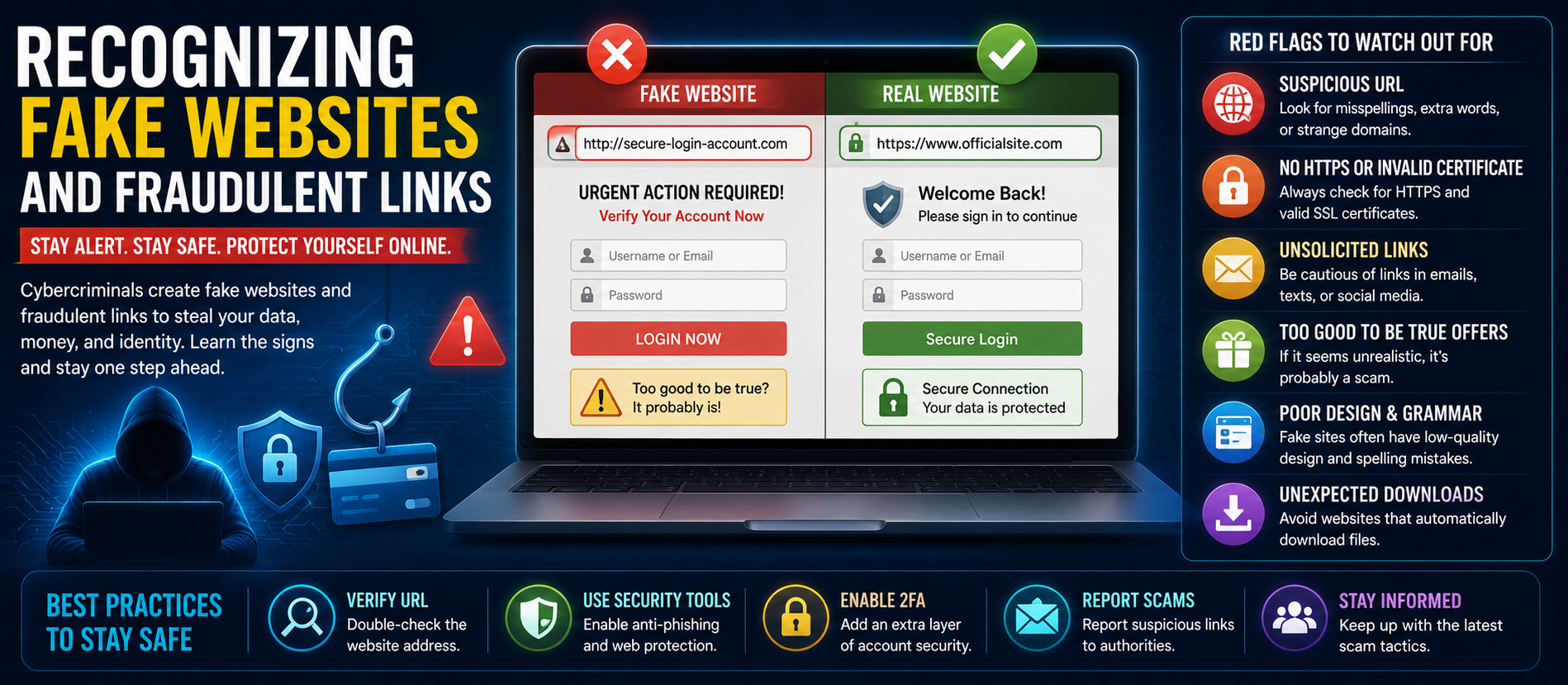
2. Watch for Look-Alike Domains
3. Hover Over Links Before Clicking
4. Look for Unexpected Urgency
5. Be Careful With Requests for Passwords
6. Never Treat One-Time Codes as Harmless
7. Examine the Greeting and Personalization
8. Look for Strange Grammar and Formatting
Introduction
Phishing emails are designed to look trustworthy.
That is what makes them dangerous.
A phishing message may look like it came from your bank, employer, delivery company, cloud service, social media account, payment provider, or even someone you know. It may use a familiar logo. It may contain professional-looking graphics. It may use your name.
The goal is usually simple: make you act before you stop to verify the message.
The attacker may want your password, financial information, identity details, one-time code, business credentials, or access to your computer. A malicious attachment or link may also install malware.
The good news is that phishing emails often contain clues. You do not need to be a cybersecurity expert to find them. You need a repeatable process.
This guide explains how to identify phishing emails using a practical, professional-style checklist. It also explains newer threats, including highly polished phishing messages created with artificial intelligence.
What Is a Phishing Email?
A phishing email is a deceptive message designed to persuade you to reveal information, click a harmful link, open a dangerous attachment, transfer money, or take another action that benefits the attacker.
Google describes phishing as an attempt to steal personal information or gain access to online accounts through deceptive emails, messages, advertisements, or websites that imitate services people already use.
Phishing is a form of social engineering. Instead of attacking only technology, the attacker targets human decisions.
Why Phishing Emails Still Work
Modern phishing does not always look like an obvious scam.
Attackers can copy the visual style of legitimate companies. They can create convincing login pages. They can use information found on public websites and social media. They can also automate campaigns and personalize messages.
The Federal Trade Commission warns that phishing messages commonly pretend to come from organizations people know and trust. The messages may claim there is an account problem, suspicious activity, payment issue, invoice, or another urgent reason to click.
The strongest defense is not memorizing one type of scam. It is learning to question unexpected requests.
The Golden Rule of Phishing Detection
Do not judge an email only by how it looks. Judge the request.
A professional logo does not prove authenticity.
A familiar sender name does not prove authenticity.
A correct spelling style does not prove authenticity.
Even a message that appears to come from a real company may be fraudulent.
Ask:
- Was I expecting this message?
- Do I actually have an account with this company?
- Was I expecting this invoice or attachment?
- Does the sender want me to reveal something sensitive?
- Does the message create unusual urgency?
- Can I verify the request independently?
1. Check the Sender's Email Address
The sender name is not enough.
Attackers can make an email appear to come from a familiar organization by changing the display name.
For example, an email might display:
Bank Security Team
But the actual address might be something unrelated.
Look at the full email address. Check the domain after the @ symbol.
A message claiming to come from a company should normally use that organization's legitimate domain. Be careful with:
- Extra words in the domain
- Misspelled company names
- Unexpected subdomains
- Random numbers or characters
- Free email accounts used for business requests
- Look-alike domains
Google recommends checking whether the sender name and email address match and reviewing authentication information where available.
2. Watch for Look-Alike Domains
Attackers may register domains that look similar to legitimate ones.
They may change one character, add a word, or use a different domain extension.
For example, a fake domain might resemble a real brand while being controlled by someone else.
💡 Key Insight
Do not focus only on the beginning of a URL. The most important part is usually the registered domain.
When checking a link, identify the actual destination before clicking.
3. Hover Over Links Before Clicking
This is one of the most useful phishing detection habits.
On a computer, move your mouse over the link without clicking it. Your email application may display the destination URL.
Compare the visible link text with the actual destination.
If an email says “Open your bank account” but the link points to an unrelated domain, stop.
Google specifically recommends hovering over links and checking whether the URL matches the description.
Do not assume that a link is safe because it uses HTTPS. HTTPS encrypts the connection, but a phishing website can also use HTTPS.
4. Look for Unexpected Urgency
Urgency is one of the most common social-engineering techniques.
A phishing email may say:
- Your account will be closed today.
- Your payment failed.
- You must verify your identity immediately.
- Your package cannot be delivered.
- Your account has been compromised.
- You have only 30 minutes to respond.
- Your manager needs this information now.
The purpose is to reduce the time you have to think.
The FTC advises consumers to slow down when a message creates pressure to act immediately.
Urgency does not automatically prove a message is fake. Real alerts can be urgent. But unusual pressure should trigger verification.
5. Be Careful With Requests for Passwords
Unexpected password requests deserve special attention.
Legitimate services generally should not ask you to send your password by email.
Be especially cautious if a message asks you to:
- Reply with your password
- Confirm your password through a link
- Enter your password into an unexpected page
- Share a one-time verification code
- Provide backup codes
Google advises users not to enter passwords after following a link in a suspicious message and instead to go directly to the intended service.
6. Never Treat One-Time Codes as Harmless
One-time passwords and verification codes can be extremely valuable to attackers.
A scammer may already know your password and only need the second factor to complete the login.
An email or message might say:
“We need the code that was just sent to you to verify your account.”
Do not share that code unless you initiated the transaction and understand exactly why it is required.
Multi-factor authentication can make account takeover harder, but it does not mean you should share verification codes with another person. The FTC recommends multi-factor authentication as an important account-protection measure.
7. Examine the Greeting and Personalization
A generic greeting does not automatically mean phishing.
However, it can be a clue when combined with other warning signs.
Examples include:
- Dear Customer
- Dear User
- Dear Account Holder
- Dear Valued Member
At the same time, do not assume a personalized message is legitimate. Attackers can find names and other public information online.
Personalization is not proof.
8. Look for Strange Grammar and Formatting
Older phishing emails often contained obvious spelling and grammar errors.
That clue is still useful, but it is no longer enough.
Modern attackers can produce polished text. AI tools can also help create grammatically correct messages.
Instead of asking only, “Does this contain spelling mistakes?” ask:
- Does the writing sound unusual for this organization?
- Does the request match normal business procedures?
- Does the sender normally communicate with me this way?
- Does the message contain strange formatting or unexpected terminology?
- Is the tone unusually threatening or emotional?
9. Treat Unexpected Attachments as High Risk
An unexpected attachment deserves caution.
Attackers may use invoices, documents, spreadsheets, compressed files, or other formats to deliver malware or direct victims to a malicious site.
Do not open an attachment simply because the email appears professional.
If you were not expecting the file, verify it through a separate communication channel.
The FTC advises users not to download unexpected attachments because they may lead to malware or requests for sensitive information.
10. Be Suspicious of Fake Invoices
Business users should pay special attention to unexpected invoices.
A fake invoice may contain a familiar company name, a plausible amount, and a payment deadline.
Before paying, verify:
- Who requested the payment?
- Was the purchase actually made?
- Does the invoice number match your records?
- Is the bank account or payment destination unchanged?
- Did the supplier change payment details unexpectedly?
For high-value payments, verify the request using a trusted phone number or an established business contact.
11. Check Whether the Request Makes Sense
Context is powerful.
Suppose you receive an email saying your cloud storage account is about to expire.
Ask yourself:
Do I use that service?
Do I normally receive billing notices this way?
Did I recently make a change to the account?
Does the message match the company's normal communication?
If the answer is no, stop and verify.
12. Watch for Emotional Manipulation
Phishing attacks often use emotion.
Common emotional triggers include:
- Fear
- Curiosity
- Excitement
- Greed
- Authority
- Embarrassment
- Urgency
A message may claim you won a prize. Another may say your boss needs something immediately. Another may warn about a security incident.
When emotion rises, slow down.
13. Be Careful With “Too Good to Be True” Offers
Free gifts, refunds, prizes, exclusive discounts, investment opportunities, and unexpected rewards can be used as phishing bait.
Ask why you received the offer.
Did you enter a competition?
Did you request a refund?
Did you sign up for the promotion?
If not, verify before clicking.
14. Do Not Trust Logos
Logos are easy to copy.
So are brand colors, signatures, buttons, and email layouts.
A convincing design can make a fake message look legitimate.
Professional appearance is not authentication.
15. Be Careful With Reply-To Addresses
Some email scams use one address in the visible sender field but direct replies to another address.
If a message asks you to send sensitive information, inspect the reply destination.
This is especially important for finance, payroll, purchasing, and executive communication.
16. Watch for Business Email Compromise
Business email compromise, or BEC, targets organizations by impersonating executives, vendors, employees, or business partners.
A common scenario is an email that appears to come from a senior employee and requests an urgent payment or transfer.
Another may claim that a vendor has changed its bank account.
Use a verification process for financial requests.
Do not rely on email alone for unusual payment changes.
The FTC's small-business guidance warns that attackers may impersonate vendors or company leaders and use urgent requests for passwords, banking information, or other sensitive data.
17. AI Is Making Phishing More Convincing
Artificial intelligence is changing phishing.
Attackers can use AI to create fluent messages, personalize content, translate messages, imitate business language, and generate large numbers of variations.
This means grammar is becoming a weaker signal.
The better approach is to examine the request, sender, destination, context, and verification path.
AI-generated phishing may look professional. That does not make it legitimate.
18. Watch for QR-Code Phishing
Some phishing campaigns use QR codes instead of ordinary links.
The email may ask you to scan a code with your phone to verify an account or view a document.
The destination can be a fake login page.
QR codes should be treated like links. Verify the source before scanning.
19. Check the Destination After a Click
If you accidentally click a link, do not immediately enter information.
Look at the page.
Does the domain make sense?
Does the page behave normally?
Is the site asking for more information than expected?
Does the page request a password or verification code unexpectedly?
If something feels wrong, close the page.
20. Verify Through a Separate Channel
This is one of the most powerful phishing defenses.
If an email asks you to take an important action, do not use the contact details provided in the suspicious email.
Instead:
- Open the company's official website manually.
- Use a phone number already saved in your records.
- Open the official app.
- Contact the person through a known communication channel.
The FTC specifically recommends contacting a company through information you know is real rather than using the phone number or link provided in a suspicious message.
A Professional 60-Second Phishing Test
When an unexpected email arrives, use this quick process.
Step 1: Stop
Do not click anything.
Step 2: Identify
Who appears to have sent the message?
Step 3: Inspect
Check the full sender address.
Step 4: Read
Look for urgency, threats, unusual requests, or emotional pressure.
Step 5: Hover
Check links without clicking.
Step 6: Verify
Contact the organization or person independently.
Step 7: Act
If it is suspicious, report it and delete it.
Phishing Email Red Flags Checklist
| Red Flag Why It Matters | |
| Unexpected message | You may not have a genuine relationship with the sender. |
| Urgent deadline | Pressure can prevent careful verification. |
| Unknown sender | The identity may not be what it claims. |
| Look-alike domain | The sender may be impersonating a real organization. |
| Unexpected attachment | It may contain malware or lead to credential theft. |
| Login request | The attacker may be trying to steal credentials. |
| Payment request | The message may be attempting financial fraud. |
| One-time-code request | The attacker may be trying to bypass multi-factor authentication. |
| Strange link | The destination may be a fake website. |
| Emotional pressure | The attacker may be trying to bypass rational checking. |
What To Do If You Clicked a Phishing Link
Do not panic. Act quickly.
If you clicked but did not enter information, close the page and consider running a security scan, especially if anything downloaded or behaved unexpectedly.
If you entered a password, change it immediately from the legitimate website. If you reused that password elsewhere, change those passwords too.
Turn on multi-factor authentication if it is available.
If you entered banking or payment information, contact the financial institution through an official channel.
The FTC recommends updating security software and running a scan if a suspicious link or attachment may have installed harmful software.
What To Do If You Shared a Password
- Go directly to the real service.
- Change the compromised password.
- Change reused passwords on other accounts.
- Enable multi-factor authentication.
- Review recent account activity.
- Sign out unfamiliar sessions or devices.
- Check recovery email and phone settings.
- Report the phishing message.
Google recommends reviewing recent security events and unfamiliar devices when suspicious activity is detected.
How Businesses Can Build Stronger Phishing Protection
Employee Training
Teach employees how to recognize unusual requests and how to report them.
Multi-Factor Authentication
Use MFA for important accounts. It can reduce the damage caused by stolen passwords.
Email Filtering
Use reputable email security and spam-filtering controls.
Domain Protection
Organizations should configure appropriate email authentication controls and monitor for impersonation.
Payment Verification
Use independent verification for unusual payment requests and bank-account changes.
Least Privilege
Employees should have only the access they need to perform their jobs.
Incident Response
Employees need a simple way to report suspicious messages quickly.
Phishing Detection for Remote Workers
Remote work can make verification harder.
Employees may not be able to walk over to a colleague's desk and confirm a request.
Use trusted communication channels. For sensitive requests, confirm through a known phone number, corporate messaging platform, or established workflow.
Do not assume that a message is legitimate because it appears to come from a senior employee.
Phishing and Social Media
Phishing is not limited to email.
Attackers can use social media messages, text messages, collaboration platforms, fake advertisements, and other channels.
The same principles apply:
- Question unexpected requests.
- Check identity.
- Inspect links.
- Do not share credentials.
- Verify important requests independently.
How AI Search and Modern Cybersecurity Change Phishing Detection
AI-powered search and assistants can help people understand suspicious messages, but users should avoid pasting sensitive information into untrusted AI services.
For businesses publishing cybersecurity content, clear definitions, step-by-step explanations, FAQs, and structured checklists can make information easier for both people and search systems to understand.
However, cybersecurity content should never encourage readers to expose private information simply to get an AI analysis.
Common Phishing Mistakes to Avoid
- Trusting the sender name without checking the address
- Clicking because the email looks professional
- Assuming HTTPS means a website is legitimate
- Sharing one-time verification codes
- Opening unexpected attachments
- Calling a phone number included in a suspicious email
- Responding under pressure
- Using the same password across accounts
- Ignoring security alerts
- Failing to report suspicious messages
How to Build a Personal Anti-Phishing Habit
Good cybersecurity is often about routine.
Before clicking an unexpected link, pause.
Before opening an unexpected attachment, verify.
Before sending sensitive information, confirm the recipient.
Before making an unusual payment, use an independent verification method.
Before entering a password, check the website address.
These small habits can prevent major problems.
Frequently Asked Questions
How can I identify a phishing email quickly?
Check the sender address, link destination, urgency, request, attachment, and context. If the message asks for sensitive information or an unusual action, verify it independently before doing anything.
Can a phishing email look completely professional?
Yes. Modern phishing messages can copy legitimate branding and use polished language. Visual appearance alone is not proof of authenticity.
What is the biggest sign of a phishing email?
There is no single universal sign. An unexpected request combined with urgency, suspicious links, credential requests, unusual payment instructions, or an untrusted sender is a strong warning pattern.
Should I click a link to see if an email is real?
No. Verify the message without clicking. If you need to access the account, open the official website or app yourself.
Can AI-generated phishing emails contain perfect grammar?
Yes. Grammar mistakes are no longer a reliable way to identify every phishing message. Check the sender, request, links, context, and verification path.
What should I do with a suspicious email?
Do not click links or attachments. Report the message using your email provider's phishing-reporting function, then delete it if appropriate.
What if I accidentally entered my password?
Change the password immediately through the legitimate website. Change it anywhere else you reused it, enable multi-factor authentication, and review recent account activity.
Can opening an attachment be dangerous?
Yes. Unexpected attachments can contain malware or lead to credential theft. Verify unexpected files before opening them.
How do businesses reduce phishing risk?
Use employee training, multi-factor authentication, email filtering, secure payment procedures, least-privilege access, email authentication, and a clear incident-reporting process.
Is phishing limited to email?
No. Similar attacks can arrive through SMS, social media, messaging platforms, collaboration tools, advertisements, and fake websites.
Final Phishing Email Checklist
- Stop before clicking.
- Check the actual sender address.
- Look for domain mismatches.
- Hover over links.
- Check the destination URL.
- Question urgent requests.
- Do not share passwords or one-time codes.
- Verify unexpected attachments.
- Verify payment requests independently.
- Use official websites and phone numbers.
- Enable multi-factor authentication.
- Report suspicious messages.
Conclusion
Learning how to identify phishing emails is one of the most practical cybersecurity skills you can develop.
You do not need to inspect every technical detail of an email. You need to slow down and verify the parts that matter.
Check the sender. Check the domain. Inspect the link. Question the request. Look for urgency. Be cautious with attachments. Never give away passwords or one-time codes because an unexpected message asks for them.
Most importantly, verify important requests through a trusted channel.
Phishing attacks will continue to evolve. AI may make messages more convincing. Attackers may use better personalization and more realistic designs. That makes careful verification more important, not less.
Stop. Inspect. Verify. Then act.
For more practical cybersecurity, AI, digital marketing, and technology insights, visit Digiifrog.
Disclaimer: This article is for general educational purposes. Cybersecurity threats and recommended controls can vary by system, organization, country, and situation. For serious incidents, contact your organization's security team or an appropriate cybersecurity professional.
Sources and Further Reading
- Federal Trade Commission — How To Recognize and Avoid Phishing Scams.
- Federal Trade Commission — Protect Yourself From Phishing Scams.
- Federal Trade Commission — Cybersecurity for Small Business.
- Google Account Help — Avoid and Report Phishing Emails.
- Google Account Help — Suspicious Sign-In and Account Activity Guidance.
Ready to Grow?
Talk to us about a strategy tailored to your brand — we will help you stand out in search, AI discovery and social.
Comments (0)
Log in to leave a comment.