
📋 Quick Summary
In this article:
How Does Malware Get Into a Device?
Why Malware Is Difficult to Remove
1. Virus
2. Worm
3. Trojan Horse
4. Ransomware
5. Spyware
6. Adware
7. Keylogger
Introduction
Malware is one of the most common cybersecurity threats faced by individuals and businesses.
The word malware means malicious software. It describes software designed to damage systems, steal information, spy on users, disrupt operations, gain unauthorized access, or support other criminal activity.
Malware can affect computers, smartphones, servers, cloud systems, and connected devices. It can arrive through phishing emails, malicious downloads, compromised websites, vulnerable software, infected attachments, fake applications, removable media, and stolen credentials.
The impact can range from annoying pop-ups to complete business disruption. Ransomware, for example, can make files unavailable and may also involve data theft and extortion. CISA describes ransomware as malware that can encrypt files and prevent access to systems and data.
This guide explains the major malware types and how to remove them in simple language. It also explains how to recognize an infection, what to do immediately, when normal antivirus scanning may be enough, and when a professional response or complete system rebuild may be safer.
What Is Malware?
Malware is software or code created for a harmful purpose.
Different malware families behave differently. Some steal information. Some encrypt files. Some allow remote control. Others secretly use a device's resources or spread to additional systems.
The Federal Trade Commission explains that malware can include viruses and spyware and can be used to steal personal information, send spam, commit fraud, monitor computer use, or record keystrokes.
Malware is therefore not a single type of attack. It is a broad category of malicious software.
How Does Malware Get Into a Device?
Malware can enter a device in many ways.
- Phishing emails
- Malicious email attachments
- Fake software updates
- Untrusted applications
- Compromised websites
- Malicious advertisements
- Unpatched software
- Weak or stolen credentials
- Remote-access vulnerabilities
- Infected USB devices
- Pirated software and files
- Malicious browser extensions
- Social-engineering scams
The FTC notes that malware can be delivered through attractive downloads, websites, links, pop-ups, and other deceptive content.
Why Malware Is Difficult to Remove
Some malware is easy to detect and remove.
Other malware is designed to remain hidden.
Advanced malware may create persistence mechanisms, disable security tools, steal credentials, communicate with command-and-control infrastructure, or create additional accounts and access paths.
This is why removing one suspicious file does not always mean the entire incident is over.
CISA recommends investigating the broader compromise during serious incidents because ransomware or other malware may be only one part of a larger intrusion.
Common Malware Types
1. Virus
A computer virus is malicious code that can attach itself to legitimate files or programs and spread when the infected file is executed.
Viruses may corrupt files, damage systems, disrupt applications, or provide an attacker with additional capabilities.
Unlike some other malware, a traditional virus generally depends on a host file or program to spread.
2. Worm
A worm is malware that can replicate and spread between systems without requiring the same type of user action as a traditional virus.
Worms often exploit network or software vulnerabilities.
Once inside a network, a worm may spread rapidly and consume system or network resources.
Keeping software patched and limiting unnecessary network exposure are important defenses.
3. Trojan Horse
A Trojan disguises itself as legitimate software, a document, an installer, or another useful file.
The user may believe they are opening a normal application when the file actually installs malicious code.
Trojans can steal information, download additional malware, or create unauthorized access.
The FTC describes Trojan horses as malware that may appear legitimate while delivering malicious code.
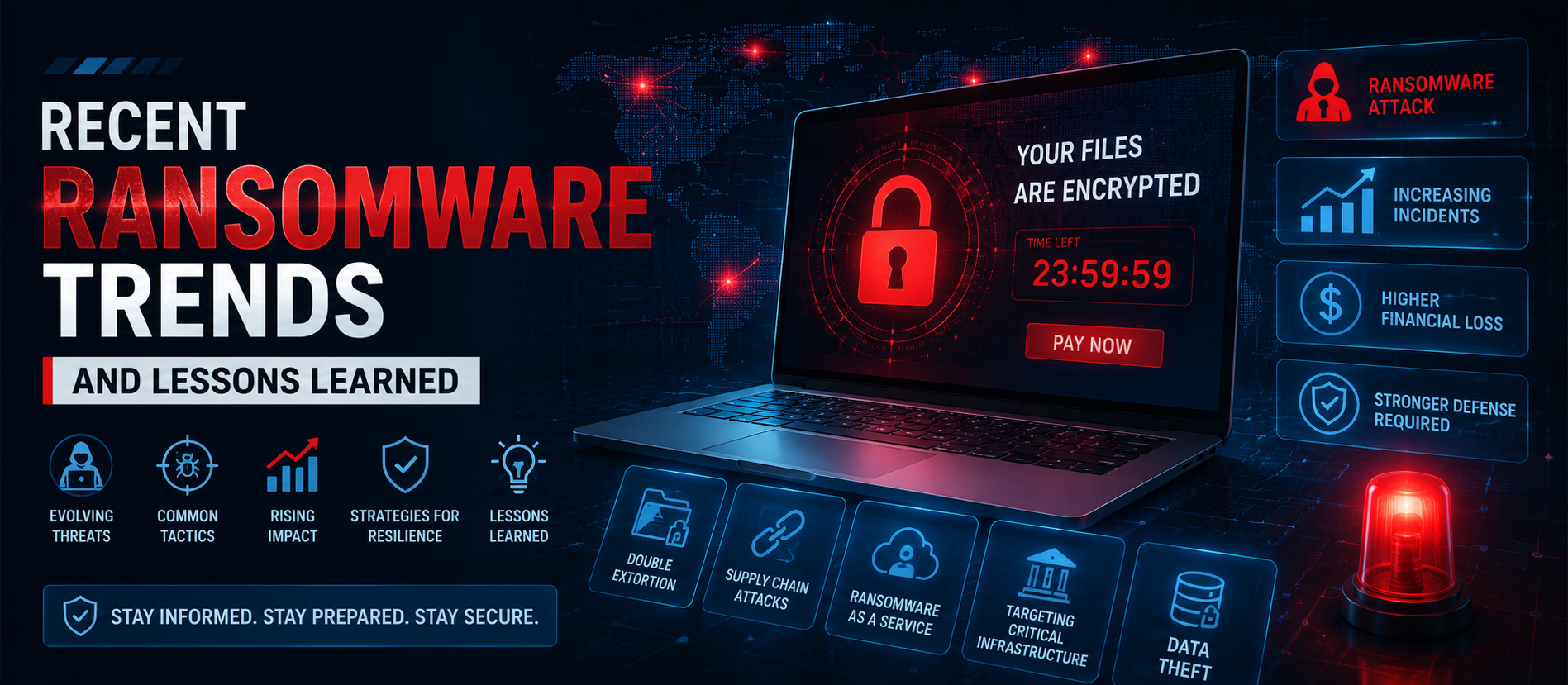
4. Ransomware
Ransomware is designed to deny access to systems or data.
Many ransomware attacks encrypt files and demand payment. Modern campaigns may also steal data before encryption and threaten to publish it.
CISA calls this combination of encryption and data theft double extortion.
Ransomware can affect individuals, small businesses, large enterprises, healthcare organizations, schools, and public institutions.
5. Spyware
Spyware secretly monitors activity or collects information.
It may record browsing behavior, capture credentials, monitor applications, or collect other personal information.
The FTC identifies spyware as malware that can monitor or control computer use and may record keystrokes.
6. Adware
Adware displays unwanted advertisements.
Not every advertising-supported application is malicious. The security problem arises when software displays deceptive ads, redirects browsers, installs unwanted components, or collects information without appropriate consent.
7. Keylogger
A keylogger records keyboard input.
Attackers can use keyloggers to capture usernames, passwords, messages, financial information, or other sensitive data.
Some keyloggers are software-based. Others may involve physical devices.
8. Rootkit
A rootkit is designed to hide malicious activity or provide persistent privileged access.
Rootkits can be particularly difficult to detect because they may interfere with normal operating-system visibility.
A suspected rootkit infection may require specialized security tools or a complete system rebuild.
9. Remote Access Trojan
A Remote Access Trojan, or RAT, can give an attacker remote control of an infected device.
A RAT may allow an attacker to view files, execute commands, monitor activity, install additional malware, or use the device as a foothold into a network.
CISA's malware taxonomy includes Remote Access Trojans as a malware category.
10. Botnet Malware
Botnet malware turns infected devices into remotely controlled systems.
Thousands or millions of compromised devices may be coordinated for spam, credential theft, distributed denial-of-service attacks, fraud, or other criminal activities.
A device can be part of a botnet without showing obvious signs to the owner.
11. Crypto jacking Malware
Crypto jacking malware secretly uses a device's computing resources to perform cryptocurrency mining or similar resource-intensive tasks.
Common signs can include unusual CPU usage, excessive fan activity, overheating, battery drain, or slow performance.
12. Information Stealers
Information-stealing malware is designed to collect valuable data.
Targets may include:
- Passwords
- Browser cookies
- Authentication tokens
- Saved credentials
- Financial information
- Cryptocurrency wallet information
- Personal documents
Stolen credentials can later be used for account takeover or further attacks.
13. File less Malware
File less malware attempts to operate without relying on a traditional malicious executable stored on disk.
It may abuse legitimate operating-system tools or memory-based techniques.
This can make detection harder for security systems that focus heavily on traditional files.
14. Scareware
Scareware uses fear to manipulate users.
A fake warning may claim that a device is infected and instruct the user to call a phone number, purchase software, or install a “security” application.
Some scareware is itself malicious.
Do not trust unexpected pop-ups claiming that a company has remotely scanned your device.
15. Browser Hijacker
A browser hijacker changes browser settings without appropriate permission.
It may change the homepage, default search engine, new-tab page, or search results.
It may also redirect users to advertising or malicious websites.
Common Signs of Malware Infection
Malware does not always produce obvious symptoms.
However, warning signs may include:
- Unexpected system slowdown
- Frequent crashes
- Unknown applications
- Unwanted browser extensions
- Unexpected pop-ups
- Browser redirects
- Changed homepage
- Disabled security software
- Unknown administrator accounts
- Unusual network activity
- Unexpected password changes
- Files becoming encrypted
- Unusual CPU or battery usage
- Unknown login alerts
- Messages sent from your account without your action
The FTC lists slow performance, unexpected errors, crashes, pop-ups, redirects, homepage changes, and unfamiliar icons or toolbars among possible malware symptoms.
What to Do If You Suspect Malware
Do not panic.
Do not immediately start deleting random system files.
Follow a controlled process.
Step 1: Stop Sensitive Activity
If you believe your computer is infected, avoid using it for online banking, shopping, password changes, or other sensitive activities until the system is checked.
The FTC recommends stopping activities that require passwords or personal information when malware is suspected.
Step 2: Disconnect the Device When Appropriate
If the device is actively communicating with a suspected attacker or malware is spreading across a network, disconnecting it can help contain the incident.
For a home computer, this may mean turning off Wi-Fi or disconnecting the Ethernet cable.
For a business network, coordinate the response with the IT or security team. Disconnecting systems without a plan can sometimes destroy useful evidence or interrupt critical services.
The FTC recommends disconnecting an affected computer from the network in response to a malware or ransomware incident, while CISA guidance emphasizes coordinated isolation during serious incidents.
Step 3: Use Trusted Security Software
Run a scan using legitimate, up-to-date security software.
Do not install an unknown “malware remover” advertised through a suspicious pop-up.
The FTC recommends using security software from a reliable provider and keeping it updated automatically.
Step 4: Update the Operating System
Install legitimate operating-system and application updates.
Updates can patch vulnerabilities that attackers may use to install or maintain malware.
Do not ignore browser, operating-system, application, firmware, or security-tool updates.
Step 5: Run a Full Scan
A quick scan can be useful, but a full scan may provide broader coverage.
Follow the security software provider's recommendations.
If the software identifies malicious files, use its recommended quarantine or removal process.
Step 6: Restart and Scan Again
Some malware becomes harder to detect while the operating system is running normally.
If your security product recommends an offline scan, safe-mode scan, or reboot-based remediation, follow its instructions.
Step 7: Change Compromised Passwords
If malware may have stolen credentials, change passwords from a known-clean device.
Start with high-value accounts:
- Banking
- Cloud storage
- Password manager
- Social media
- Business administration
Use unique passwords and enable MFA.
Why Password Changes Should Happen From a Clean Device
If a keylogger or information stealer is still active, changing a password on the infected device may simply give the attacker the new password.
Use another trusted device when possible.
After changing the password, review account sessions and sign out unknown devices.
When Antivirus Removal Is Enough
Not every malware incident requires a complete system rebuild.
If security software can identify and remove the malware, the system remains stable, and there is no evidence of deeper compromise, normal remediation may be sufficient.
However, the decision depends on the type of malware and the extent of the compromise.
NIST guidance notes that limited malware incidents may be handled through eradication when the infection has been successfully removed and the system remains functional.
When You Should Consider Reinstalling or Rebuilding a System
A rebuild may be safer when:
- An attacker obtained administrator or root-level access.
- System files were replaced.
- Persistent backdoors are suspected.
- The system remains unstable after malware removal.
- You cannot determine what the attacker changed.
- Security tools cannot establish that the malware is gone.
- The device contains highly sensitive information.
CISA incident-response guidance notes that severe infections may require rebuilding systems and restoring data from backups, particularly when privileged compromise or persistent unauthorized access is involved.
How to Remove Ransomware Safely
Ransomware requires a more careful response.
If ransomware is actively encrypting files:
- Isolate the affected device.
- Prevent further network spread.
- Notify the responsible IT or security team.
- Preserve relevant evidence when possible.
- Identify affected systems and accounts.
- Determine whether data was stolen.
- Check the availability of clean backups.
- Investigate the initial access method.
- Remove the malicious persistence.
- Rebuild or restore affected systems as appropriate.
CISA's ransomware guidance recommends identifying impacted systems, isolating them, investigating the intrusion, preserving relevant evidence, and following a coordinated containment and recovery process.
Should You Pay a Ransom?
Paying a ransom does not guarantee that files will be recovered or that stolen information will be deleted.
CISA and other U.S. government agencies strongly discourage paying ransomware demands and emphasize recovery planning and incident response.
Organizations should consider legal, regulatory, insurance, operational, and security implications and seek appropriate professional advice during a serious ransomware incident.
Restoring From Backup
Backups are one of the most important defenses against destructive malware.
A good backup strategy should include copies that malware cannot easily modify or delete.
CISA recommends maintaining offline or otherwise resilient backups and regularly testing restoration.
Do not assume that a backup is safe simply because it exists.
Test it.
Make sure the organization knows how to restore systems.
Why You Should Scan Backups Before Restoration
If malware remains in backup data, restoring the backup can reintroduce the infection.
Security teams should validate backups before using them for recovery.
CISA ransomware guidance recommends scanning backup data when possible and ensuring that recovery copies are protected from malware.
Malware Removal on Smartphones
Mobile malware can appear as a malicious application, unwanted configuration, deceptive notification, or compromised account.
If you suspect a mobile infection:
- Remove suspicious applications.
- Update the operating system.
- Review application permissions.
- Review device administrator or management settings.
- Run trusted mobile security tools where appropriate.
- Change important passwords from a trusted device.
- Enable MFA.
- Review account activity.
- Consider a factory reset if the infection cannot be confidently removed.
Malware Removal on Business Networks
Business malware incidents require more than cleaning one computer.
An infected workstation may be evidence of a larger compromise.
Security teams should investigate:
- Other affected endpoints
- Server activity
- Identity-provider logs
- VPN activity
- Administrator accounts
- Cloud access
- Email accounts
- Network connections
- Data transfers
- New or modified accounts
CISA notes that precursor malware can sometimes be a sign of a broader compromise before ransomware deployment.
Malware Removal vs Incident Response
Malware removal focuses on getting malicious software off a device.
Incident response is broader.
It asks:
- How did the attacker get in?
- What systems were affected?
- What accounts were compromised?
- What data was accessed?
- Is the attacker still present?
- What vulnerabilities enabled the attack?
- How can the organization prevent recurrence?
For serious business incidents, simply deleting malware may leave the underlying access path open.
How to Prevent Malware
Keep Software Updated
Automatic updates reduce exposure to known software vulnerabilities.
Use Reputable Security Software
Keep endpoint security enabled and updated.
Be Careful With Email
Do not open unexpected attachments or click suspicious links.
Download Software From Trusted Sources
Avoid pirated software and suspicious download sites.
Use MFA
MFA can reduce the impact of stolen passwords.
Use Strong, Unique Passwords
Do not reuse passwords across important services.
Back Up Important Data
Maintain backups that are protected from ransomware and other destructive malware.
Limit Administrator Access
Users should not have administrator privileges unless they need them.
Train Employees
Teach employees how phishing, fake updates, malicious attachments, and social engineering work.
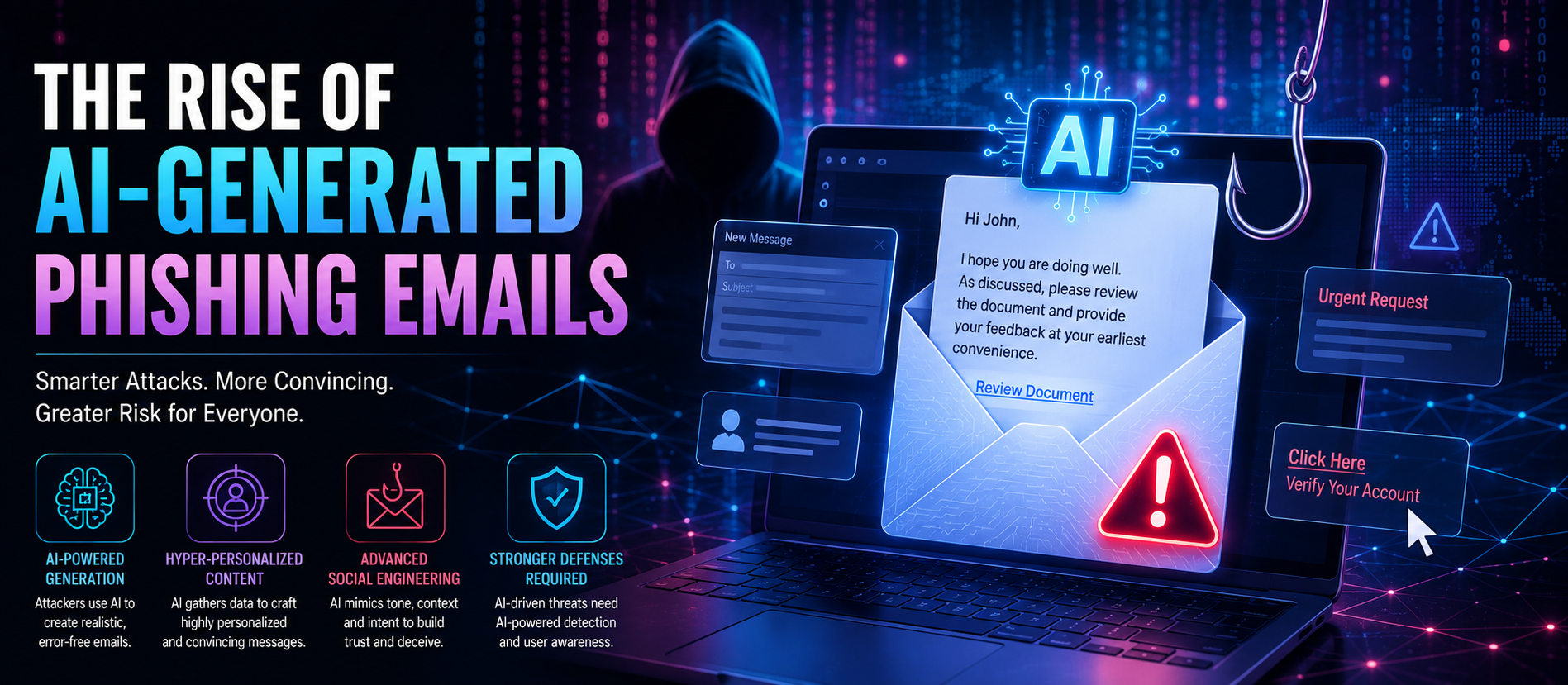
Malware and Phishing
Phishing is one of the most common ways malware reaches users.
An attacker may send a convincing email with a malicious attachment or link.
The message may impersonate a bank, delivery company, manager, supplier, or colleague.
Modern phishing can be highly convincing. Users should verify unexpected requests, especially those involving passwords, payments, software installation, or confidential documents.
The FTC identifies phishing and malicious links or attachments as common paths to malware and ransomware.
Malware and Fake Security Alerts
Be cautious when a website suddenly says:
“Your computer is infected. Call this number immediately.”
These messages may be scams.
Close the browser window and use security tools from a provider you already trust.
Do not give remote access to an unknown caller.
Do not install software because an unexpected pop-up tells you to.
Malware Detection Tools
Common defensive tools include:
- Antivirus software
- Endpoint detection and response platforms
- Mobile security software
- Browser protection
- Email security gateways
- Web filtering
- Intrusion detection
- Security information and event management
- Vulnerability scanners
- Application allow listing
CISA recommends centrally managed antivirus or anti-malware solutions and, for organizations, additional controls such as EDR, application allow listing, and monitoring.
Quick Malware Removal Checklist
| Step Action | |
| 1 | Stop sensitive activity on the suspected device. |
| 2 | Disconnect the device when isolation is appropriate. |
| 3 | Use trusted, updated security software. |
| 4 | Run a full malware scan. |
| 5 | Quarantine or remove detected malware. |
| 6 | Update the operating system and applications. |
| 7 | Change compromised passwords from a clean device. |
| 8 | Enable MFA and review account sessions. |
| 9 | Check backups before restoring data. |
| 10 | Consider professional incident response for serious compromise. |
Frequently Asked Questions
What are the most common types of malware?
Common malware categories include viruses, worms, Trojans, ransomware, spyware, adware, keyloggers, rootkits, Remote Access Trojans, botnet malware, information stealers, crypto jacking malware, and file less malware.
How do I know if my computer has malware?
Possible signs include unexplained slowdown, crashes, pop-ups, browser redirects, unknown applications, unusual network activity, disabled security tools, unexpected account activity, and encrypted files. However, malware can also operate without obvious symptoms.
Can antivirus remove malware?
Often, yes. Trusted security software can detect and remove many common malware infections. More serious compromises may require specialized investigation or rebuilding the device.
Should I disconnect an infected computer from the internet?
Isolation can help prevent malware from communicating with attackers or spreading to other systems. In a business environment, follow the organization's incident-response procedure so isolation is coordinated and evidence is preserved where appropriate.
Can malware survive a restart?
Some malware can. Persistent malware may automatically restart through scheduled tasks, services, startup mechanisms, browser extensions, or other techniques.
When should I reinstall Windows or another operating system?
Consider a rebuild when there is evidence of administrator-level compromise, persistent backdoors, damaged system files, uncertain attacker activity, or failure of normal remediation. Professional guidance may be appropriate for serious incidents.
Can malware steal passwords?
Yes. Keyloggers, information stealers, spyware, and other malware can collect credentials or authentication information.
Can malware spread through a network?
Yes. Worms and some other malware can spread across networks by exploiting vulnerabilities, stolen credentials, or shared resources.
Does a VPN stop malware?
No. A VPN can protect certain network traffic, but it does not replace endpoint security, patching, safe browsing, or malware protection.
Can ransomware be removed without paying?
Removing the ransomware does not automatically decrypt encrypted files. Recovery may depend on backups, available decryptors, system restoration, and the specific ransomware family. CISA recommends focusing on containment, eradication, and recovery rather than assuming payment will restore access.
Are backups enough to protect against ransomware?
Backups are extremely important, but they must be protected and tested. Attackers may attempt to delete or encrypt accessible backups. Offline, segmented, immutable, or otherwise ransomware-resilient backup strategies can improve recovery readiness.
Final Malware Protection Checklist
- Keep operating systems updated.
- Keep applications updated.
- Use reputable security software.
- Enable automatic security updates.
- Use MFA on important accounts.
- Use unique passwords.
- Be cautious with email attachments.
- Verify unexpected links.
- Download software from trusted sources.
- Avoid pirated software.
- Review browser extensions.
- Limit administrator privileges.
- Back up important data.
- Protect backups from ransomware.
- Test restoration procedures.
- Know how to isolate an infected device.
- Have an incident-response plan for business systems.
Conclusion
Understanding malware types and how to remove them is an important part of modern cybersecurity.
Malware comes in many forms. Viruses, worms, Trojans, spyware, ransomware, keyloggers, rootkits, RATs, botnets, information stealers, and other malicious programs have different behaviors and require different responses.
The first priority is containment. If an infection is active, prevent it from spreading when appropriate. Next, use trusted security tools to detect and remove the malware. Update the system. Review accounts and credentials. Check whether data was accessed or stolen.
For serious incidents, do not stop at deleting the malicious file. Investigate how the attacker entered the environment and whether other systems or accounts were compromised.
Backups are also critical. A secure and tested backup can turn a destructive malware incident into a recoverable event. CISA recommends resilient backup and recovery practices as part of ransomware preparedness.
Finally, prevention matters. Keep software updated. Use reputable security tools. Enable MFA. Limit administrator access. Train users. Protect backups. Monitor unusual activity.
💡 Key Insight
Malware removal is important. But preventing reinfection is the real goal.
For more practical cybersecurity, AI, cloud, digital transformation, and technology insights, visit Digiifrog.
Disclaimer: This article is for general educational and informational purposes. Malware incidents can vary significantly. If a device contains sensitive business, financial, healthcare, or personal information, or if administrator-level compromise is suspected, consult a qualified cybersecurity professional before taking actions that could destroy evidence or worsen the incident.
Sources and Further Reading
- Federal Trade Commission — Spyware and Malware.
- Federal Trade Commission — Protect Your Computer from Malware.
- Federal Trade Commission — Cybersecurity for Small Business.
- CISA — #StopRansomware Guide.
- CISA — Current Malware Threats and Mitigation Strategies.
- NIST — Guide to Malware Incident Prevention and Handling.
Ready to Grow?
Talk to us about a strategy tailored to your brand — we will help you stand out in search, AI discovery and social.
Comments (0)
Log in to leave a comment.